
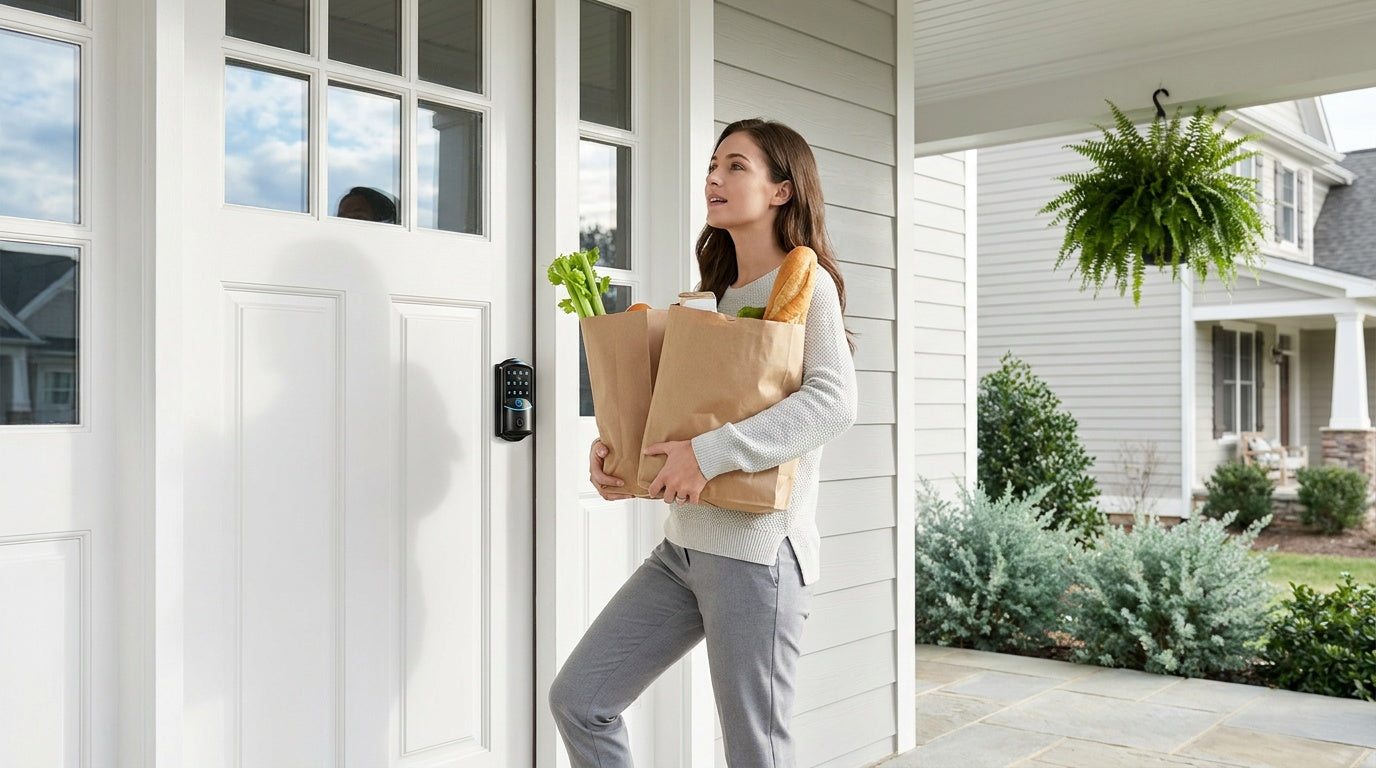
You're halfway out the door, hands full of groceries, and you suddenly wonder — did I lock the front door? With a Veise smart lock connected to Google Home, that question has a three-second answer. Just say, "Hey Google, is the front door locked?" and you'll know instantly. Better yet, say "Hey Google, lock the front door" and it's done before you reach the car.
Connecting a smart lock to Google Home is one of the most practical smart home upgrades a homeowner can make. You get voice control, remote lock status checks, and the ability to build automated routines that work around your daily life. This guide walks you through the complete setup process for Veise smart locks — covering both the Wi-Fi Smart Lock and the Smart Lock w/ Gateway 1/2 lines — plus voice command tips, Google Home routine setup, and a troubleshooting section for when things don't go as planned.
Which Veise Smart Locks Work with Google Home?
Not every lock in the Veise lineup connects to Google Home, and that's an important distinction to understand before you start. Veise's two smart lock categories — the Wi-Fi Smart Lock and the Smart Lock w/ G1 and Smart Lock w/ G2 — both support Google Assistant. The path to connect them differs slightly depending on which category you own, so it's worth knowing which one you have before following the steps below.
Wi-Fi Smart Locks (VE027 and VE012W series) have Wi-Fi connectivity built directly into the lock. They connect to your home network on their own, which means no additional hardware is needed for Google Home integration. This is the simpler of the two paths.
Smart Locks w/ Gateway 1/2 communicate wirelessly at short range and require their paired gateway — plugged into a wall outlet near the door — to reach the Internet. The gateway is what bridges the lock to your router and, in turn, to Google Home. If you have a gateway-paired lock, make sure the gateway is already set up and online before you begin the Google Home linking steps.
Veise's Keypad Deadbolt and Keypad Latch Lock lines are keypad-only and do not connect to Google Home. Remote access and voice control require a smart lock — gateway-paired or Wi-Fi — not a Keypad Deadbolt or Keypad Latch Lock, even if paired with a gateway. Keep that in mind if you're still in the buying stage.
Before You Start: What You'll Need
A little preparation here saves a lot of frustration later. Before opening the Google Home app, confirm you have the following in place:
- Your Veise smart lock, fully installed. The lock needs to be physically installed on your door and powered on. Veise smart locks are designed for wood doors with a standard thickness of 1‑3/8" to 2", and installation typically takes about 15 minutes with a screwdriver. If you haven't installed the lock yet, complete that step first.
- The lock set up in its app. Your Veise smart lock must be added and working in the mobile app before you can link it to Google Home. This is a required step — Google Home connects to the lock through its native app account, not directly to the hardware.
- A stable 2.4 GHz Wi-Fi network. Both the lock (or its gateway, for gateway-paired models) and your Google Home device need to be on the same reliable home Wi-Fi network. Most home routers broadcast on both 2.4 GHz and 5 GHz — Veise smart locks support 2.4 GHz Wi-Fi only, not 5 GHz, so make sure that band is active.
- The Google Home app installed on your phone. Download it from the App Store or Google Play if you don't already have it, and sign into your Google account.
- Your app account credentials handy. You'll need to log into your smart lock's app account during the Google Home linking process.
For gateway-paired locks specifically, also confirm that the gateway is plugged in, connected to your router, and showing an active status in the app. If the gateway is offline, the lock won't appear as available when you try to link it in Google Home.
Path 1: Connecting a Veise Wi-Fi Smart Lock to Google Home
Wi-Fi Smart Locks are the most straightforward to connect because the lock itself handles the Internet connection. Once the lock is set up in its app and connected to your Wi-Fi, you're essentially just linking two accounts together. Here's how to do it:
- Open your smart lock’s app and confirm the lock is connected to your Wi-Fi network. In the app, go to the Works with section.
- Select Google Assistant, then tap Agree and link. Make sure the Google Home app is already installed — you will be redirected there to complete authorization.
- Sign in with your Google account when prompted. If you don't have one yet, create a Google account.
- In the Google Home app, add devices and assign them to the appropriate Home and location.
- Return to your lock’s app and confirm the link status shows linked with Google Assistant.
- You may optionally assign the lock to a clear room name in Google Home (such as “Front Door”) to make voice control more intuitive.
- Test the setup with a voice command such as: “Hey Google, lock the front door.”
The whole process typically takes about five minutes once your lock is fully set up in its app. If the lock doesn't appear in the Google Home app, try refreshing the device list or restarting the app.
Path 2: Connecting a Veise Smart Lock w/ Gateway 1/2 to Google Home
For the Smart Lock w/ G1 and Smart Lock w/ G2 lines, the gateway does the heavy lifting when it comes to remote connectivity. The lock communicates wirelessly at short range with the gateway, and the gateway connects to your home network — so the gateway needs to be active and online before you link to Google Home. The two lines use different apps, so the linking steps differ slightly. Follow the path that matches your lock below.
Smart Lock w/ G1
The Smart Lock w/ G1 line links to Google Assistant through its app, the same way the Wi-Fi locks do.
- Confirm your gateway is online. Open the app and verify that the gateway and lock are both showing as connected. If either is offline, troubleshoot the gateway connection before continuing.
- In the app, go to My → Works with, select Google Assistant, then tap Agree and link. Make sure the Google Home app is installed — you will be redirected there for authorization.
- Sign in with your Google account when prompted, or create one if you don't have it yet.
- In the Google Home app, add devices to your Home and assign them to the appropriate Home and room.
- Return to the app and confirm the link status shows it's linked with Google Assistant.
- Once linked, control your lock using Google Assistant and test with a voice command: "Hey Google, lock the front door."
Smart Lock w/ G2
The Smart Lock w/ G2 line links from the Google Home side first, then turns on voice control in its own app.
- Confirm the Google Home app is installed and your G2 Gateway is set up and online. The gateway is sold separately, so make sure it's in place and connected before you start.
- Open the Google Home app, go to Devices → Add device → Works with Google Home.
- Search for "Sciener Smart" and select it. When the login page appears, sign in with your app account to authorize the connection.
- After successful authorization, select your lock, a Home, and a device location to organize it within Google Home.
- Open your lock’s app, tap the menu in the upper-left corner, then go to Works with → Google Home. Tap Turn On and set a Security Code — this code will be required when unlocking with Google Home.
- Assign a clear name if needed, then test with a voice command: "Hey Google, lock the front door."
One thing to keep in mind with gateway-paired locks: if you move the lock or the gateway, or if the gateway loses its connection to your router, the Google Home integration will stop working until the gateway comes back online. The lock itself will still operate normally via keypad, key fob, and physical key in the meantime.
Using Google Assistant Voice Commands with Your Veise Smart Lock
Once your lock is linked in Google Home, you can control it using natural language voice commands through any Google Assistant-enabled device — a Google Nest speaker, a Nest Hub display, or even just the Google app on your phone. Here are the most useful commands to know:
- Lock the door:"Hey Google, lock the front door."
- Check lock status:"Hey Google, is the front door locked?"
- Unlock the door:"Hey Google, unlock the front door." — Note: Google requires a voice PIN for unlock commands as a security measure. You'll set this PIN during the Google Home setup process, and you'll be prompted to say it whenever an unlock is requested.
The voice PIN for unlocking is a deliberate safety feature built into Google Home, not a limitation of the lock itself. It prevents anyone who can speak near a Google speaker from unlocking your door without authorization. Keep this PIN different from any keypad codes on the lock, and don't share it casually. If you'd prefer not to use voice unlock at all, you can disable that specific command in Google Home settings and rely on voice commands for status checks and locking only.
For the most natural experience, give your lock a clear, short name when you assign it to a room — something like "Front Door" or "Main Door." Names with unusual characters or long strings can be harder for Google Assistant to parse reliably.
Setting Up Google Home Routines for Your Smart Lock
Google Home Routines allow you to trigger your smart lock — along with other connected devices — using a single phrase, schedule, or automation. Note that Google Assistant behavior and available routine options may vary depending on device model, firmware version, Google Home app settings, and regional availability.
Here are a few practical setups that Veise owners use most:
Good Night Routine
Say "Hey Google, good night" and your front door locks, the lights dim, and the thermostat adjusts for sleeping. To create this in Google Home, open the app, tap Automations, then New Routine. Set the starter phrase to "Good night," then add an action: Adjust home devices → select your lock → set to Lock.
Leaving Home Routine
If you have a Google Nest speaker near your door, say "Hey Google, I'm leaving" to lock the door, turn off lights, and set the home to away mode in one go. This is especially useful for busy routines where multiple actions can be handled with a single command.
Scheduled Auto Lock
You can also set a time-based Routine to lock the door automatically at a set time, such as 10:00 PM. In Google Home, create a new Routine with a schedule starter, then add the lock action.
Note that routines that include unlocking will still require a voice PIN when triggered by voice. Time-based lock-only routines typically do not require a PIN. In many cases, users rely on the lock’s built-in auto lock feature instead of scheduling a nightly routine, since the lock can secure itself after a set interval.
Troubleshooting Common Connection Issues
Even with a clean setup, smart home integrations occasionally need a nudge. Here are the most common issues Veise smart lock owners encounter with Google Home and how to fix them:
Google Home Can't Find My Lock
The most common cause is that the lock isn't yet fully set up in its native app, or the app account isn't properly verified. Make sure the lock appears as online in the app before trying to link it in Google Home. For gateway-paired locks, also confirm the gateway is online and showing an active connection.
Lock Appears in Google Home but Doesn't Respond
Check whether the lock is online in the native app first. If the lock shows as offline there, the issue is between the lock (or gateway) and your router — fix that first, then test in Google Home again. If the lock is online in the app but unresponsive in Google Home, try unlinking the account in the Google Home app and then re-linking it by repeating the linking steps above.
Google Assistant Doesn't Recognize My Voice Commands
This usually comes down to the device name. If you named your lock something lengthy or ambiguous during setup, Google Assistant may struggle to match your spoken command to the right device. Rename the lock to something short and clear in the Google Home app — "Front Door" is more reliable than "Veise Keypad Deadbolt Front Entrance." After renaming, re-test with a simple command.
Firmware or App Out of Date
If other steps don't resolve the issue, check whether there's a firmware update available through the lock's app. Outdated firmware can cause compatibility issues with Google Home as the platform updates on Google's end. Keeping the lock's firmware current is a simple maintenance habit that prevents most long-term connectivity problems.
What Happens When the Internet Goes Down?
This is a common concern with smart home devices: what do you do if the Internet goes out? The good news is that Veise smart locks are designed with real-life reliability in mind, and a dropped Internet connection doesn't leave you locked out.
Both the Wi-Fi Smart Lock and the gateway-paired Smart Lock lines retain full local functionality regardless of Internet status. The keypad, physical key, and key fob (where included) all continue to work as normal — no Internet required. Even when Wi-Fi is down, app control continues to work locally as long as you're within short-range wireless distance of the lock. Long-distance remote features like checking lock status from across town or sending an alert to a family member's phone do require active Internet. But if you're at home and Wi-Fi is temporarily down, you're not stuck.
Google Home Routines and voice commands that rely on cloud processing will pause when the Internet is unavailable, as those features need to reach Google's servers. But the lock itself remains fully operational through its built-in access methods. This is one of the practical benefits of Veise's design philosophy: multiple ways to enter means you always have a backup, regardless of what the network is doing.
On the battery side, Veise's Wi-Fi Smart Lock uses 8 AA/LR6 alkaline batteries (compared to the 4 AA setup common in many competing locks), providing stronger signal stability and a longer-lasting power reserve. For gateway-paired models in the VE017 series and Wi-Fi models in the VE027 series, a Type-C emergency power port is available on those select models — so even if the batteries are fully drained, you can connect a portable charger to regain access. Low battery alerts push through the app before you reach that point, giving you plenty of notice to replace batteries.
Ready to Make Your Front Door Smarter?
Connecting a Veise smart lock to Google Home takes about five minutes once everything is in place — and the payoff is a front door that responds to your voice, fits into your daily routines, and keeps you informed whether you're in the kitchen or across town. The setup process is the same two-path approach for any smart lock: install the lock, set it up in the app, then link the app account to Google Home through the "Works with Google" flow.
Veise makes this process straightforward because the products are engineered to work reliably from day one. With DIY installation that takes 15 minutes with a screwdriver, no monthly subscription fees, and full backup access through the keypad, physical key, and key fob (where included), a Veise smart lock is designed to fit your life — not complicate it.
Frequently Asked Questions
Do all Veise smart locks work with Google Home?
No. Google Home compatibility is available on Veise's Wi-Fi Smart Locks (VE027 and VE012W series) and Smart Lock w/ Gateway 1/2 (G1 and G2 lines). Keypad Deadbolt and Keypad Latch Lock models are keypad-only and do not support app or voice control. Remote access and voice integration require a smart lock — gateway-paired or Wi-Fi.
Do I need a Google Nest speaker to use voice commands with my Veise lock?
Not necessarily. Google Assistant voice commands work through any Google Assistant-enabled device, including Android phones, iPhones with the Google app, Google Nest speakers, and Nest Hub displays. However, a Nest speaker or Hub placed near your entryway makes the experience more seamless for everyday use.
Can Google Home unlock my Veise smart lock by voice?
Yes, but it requires a voice PIN as a security measure built into Google Home. When you ask Google Assistant to unlock your door, you'll be prompted to say your security PIN before the command executes. This prevents unauthorized access through the speaker. Locking by voice does not require a PIN.
Does my Smart Lock w/ G1 or G2 need the gateway plugged in for Google Home to work?
Yes. The gateway acts as the bridge between the lock and your Internet connection. Without the gateway powered on and connected to your router, the lock won't be reachable through Google Home. Voice commands and remote features require the gateway to be active and online.
Will my Veise lock still work if the Internet goes down?
Yes. All Veise smart locks retain full local access via the keypad, physical key, and key fob (where included) regardless of Internet status. Even when Wi-Fi is down, app control continues to work locally as long as you're within short-range wireless distance of the lock. Only long-distance remote features and Google Home routines require an active Internet connection.
What types of doors are Veise smart locks compatible with?
Veise smart locks are designed for wood doors only, with a standard door thickness of 1‑3/8" to 2". They are not compatible with fiberglass, metal, storm, or sliding doors. Because Veise locks are full replacements (not retrofit overlays), the installer needs to be the property owner or have authority to modify the door hardware.
Need Help Choosing the Right Veise Smart Lock?
Whether you're looking for a Wi-Fi smart lock with built-in Google Home support or a gateway-paired lock with multilingual voice prompts and fingerprint access, Veise has a model built for your home. Browse the full lineup — priced from $30 to $180 with no subscription fees — or reach out to the US-based support team for a personal recommendation.

Leave a comment
This site is protected by hCaptcha and the hCaptcha Privacy Policy and Terms of Service apply.