
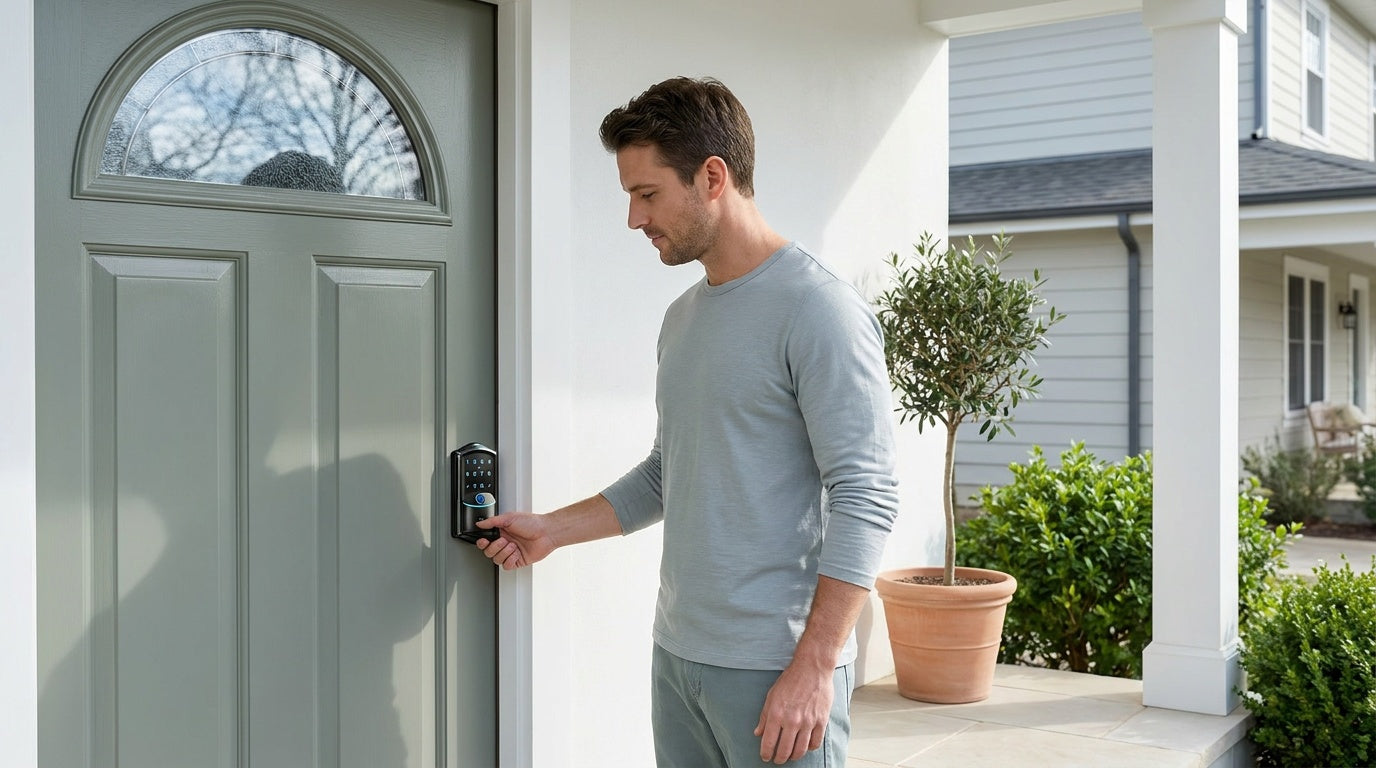
You reach for the door, expecting to hear that satisfying click of the bolt sliding home — and nothing happens. Your smart lock won't lock, and now you're standing there wondering whether your home is actually secure. It's one of those small problems that feels urgent fast.
The good news: most of the time, a smart lock that won't lock has a simple, fixable cause. Dead batteries, a door that's settled slightly out of alignment, an auto lock setting that got toggled off, or a temporary app glitch are responsible for the vast majority of these situations. You don't need a locksmith, and you probably don't need a new lock.
This guide walks you through every likely cause in order of how common it is, so you can work through the checklist quickly and get your lock doing its job again. Whether you have a keypad deadbolt, a Wi-Fi smart lock, or a gateway-paired model, the steps below apply broadly — with notes where behavior differs by lock type.
Why This Problem Is Worth Taking Seriously
A smart lock that won't lock isn't just an inconvenience — it's a security gap. Unlike a traditional lock where failure is usually obvious (the key doesn't turn, the knob is broken), a smart lock can appear to function normally on screen while the bolt never actually extends. You might close the door, glance at the app showing "locked," and walk away without realizing the deadbolt is sitting flush in the door rather than extended into the strike plate.
Understanding what's happening at the mechanical level, not just the software level, is what separates a real fix from a false sense of security. Let's start with the most common culprit.
Step 1: Check the Batteries First
Low batteries are behind more smart lock failures than any other single cause. The motor that drives the bolt requires a meaningful surge of power to extend or retract — more than the lock needs to power its keypad or display. When battery voltage drops below a certain threshold, the lock may still light up, respond to keypresses, or even show as connected in the app, but the motor doesn't get enough juice to complete the throw.
Replace the batteries with fresh AA/LR6 alkaline batteries — Veise locks are spec'd for alkaline, so don't substitute rechargeables, and don't mix old and new cells or different brands. After replacing, test the lock manually by pressing the lock button and watching the bolt travel its full range of motion.
If you have a Veise Wi-Fi Smart Lock, note that it uses 8 AA batteries rather than the more common 4 AA setup. This design delivers stronger signal, a more stable connection, and a larger power reserve. When batteries do run low on this model, swapping all eight at once is the right move — mixing old and new cells can create uneven power draw.
One more thing: Veise locks warn you before the batteries run out with a voice or beep prompt (the exact cue varies by model), and connected locks also push a notification through the app. Don't wait until the lock stops working entirely — swap batteries at the first warning.
Step 2: Look at Door and Strike Plate Alignment
Houses settle. Humidity swells wood doors in summer. Temperature swings shift door frames over time. Even a millimeter or two of drift can be enough to put the bolt path out of line with the strike plate hole, causing the bolt to hit the plate's face rather than slide cleanly into the pocket.
To diagnose this, watch what happens when you try to lock the door manually while it's open. If the bolt extends and retracts freely, the lock mechanism itself is fine — the problem is the door-to-frame relationship. Now close the door and try locking. If you hear grinding, feel resistance, or the motor sounds strained before stopping, the bolt is meeting resistance from the strike plate.
A few quick checks to run:
- Watch where the bolt meets the strike: if it lands on the plate's face instead of sliding into the pocket, the lock's exterior assembly may not be sitting parallel to the door edge.
- If you recently installed the lock, a crooked exterior assembly is the most common Veise-documented cause of a bolt that won't extend fully — the included installation guide calls for keeping it parallel to the door edge.
- Make sure the door closes fully and sits flush against the frame before the bolt is asked to throw.
If the bolt won't seat cleanly, the fix is to realign the hardware — reinstall the exterior and interior assemblies parallel to the door edge by following the included installation guide and video. Small alignment details are the most common source of post-install issues, so it's worth working through the guide step by step.
Step 3: Verify Your Auto Lock Settings
If your lock no longer auto locks, the first place to check is the auto lock setting in your lock’s configuration. Auto lock is a timer-based feature that operates independently of door position, and it may be enabled or disabled depending on the model. In some cases, it may also be turned off during setup or after a factory reset. Refer to your user manual to confirm the default setting for your specific model and check whether the feature is currently enabled.
Veise connected smart locks (Smart Lock w/ Gateway 1/2 and Wi-Fi) let you set the auto lock interval anywhere from 10 to 180 seconds, while keypad deadbolt and keypad latch locks support 10 to 99 seconds. Check your lock's programming menu or app to confirm:
- Auto lock is toggled on
- The interval is set to a time that works for your household (30 seconds is a common starting point)
- No override mode (such as Passage Mode or continuous unlock mode, if supported on your model) is active
Passage Mode (also called free-passage or hold-open mode, where available) is designed to let the door remain unlocked for convenient access — useful during a move or a party. If it has been enabled, the lock will not engage automatically until the mode is turned off.
Step 4: Check App and Connectivity Issues (Smart Locks)
If you're relying on the app to lock the door remotely and it's not responding, connectivity is the first thing to rule out. For Smart Locks w/ G1 and Smart Locks w/ G2, the lock communicates through a paired gateway — so if the gateway loses its connection to your router, remote lock commands won't reach the lock. For Wi-Fi Smart Locks, the lock connects directly to your router, so the lock itself may have dropped off your network.
Work through these in order:
- Check your router — A quick power cycle (unplug, wait 30 seconds, plug back in) resolves more connectivity issues than any other single step. Veise Wi-Fi smart locks connect on 2.4 GHz only (not 5 GHz), so confirm the lock is joined to your router's 2.4 GHz band.
- Check the gateway status (for gateway-paired locks) — Most gateways have a status light. A solid light typically means connected; a flashing or red light means it's lost the network. Unplug the gateway and plug it back in.
- Force-close and reopen the app — The app's cached status can fall out of sync with the lock's actual state. Closing it fully and reopening usually re-syncs.
- Check your phone's Internet connection — If your phone is on a weak cell signal or a different Wi-Fi network than the gateway, commands may not reach the lock.
One important note: even when your Internet connection is down, if you're within short-range wireless distance of the lock, app control continues to work locally. Only long-distance remote features — locking from another city, receiving push alerts — require an active Internet connection. So if you're home and the app shows "offline," try standing closer to the lock or gateway before assuming the connection is fully lost.
Step 5: Listen for the Motor
When you send a lock command, you should hear the motor engage — a brief mechanical hum or click as the bolt moves. If you hear nothing at all, the signal isn't reaching the motor (go back to batteries and connectivity). If you hear the motor straining but the bolt doesn't move, there's either a physical obstruction or the motor is failing.
Open the door and try locking manually. Watch the bolt extend. Look for:
- Debris in the bolt channel or strike plate hole (paint, wood chips from settling, dirt buildup)
- The bolt itself catching on the edge of the hole due to misalignment
- Any visible damage to the bolt or escutcheon
If the bolt catches or won't extend fully, the cause is usually alignment rather than the motor — recheck that the exterior assembly sits parallel to the door edge and reinstall per the included guide if needed. Persistent motor strain after a clean reinstall with fresh batteries is a sign to contact Veise support.
Step 6: Reset or Update the Lock
Software glitches can occur after app updates, network changes, or power interruptions. If the lock responds inconsistently — for example, it locks intermittently or the app and physical lock state do not match — start with the least invasive fix.
First, check whether a firmware update is available in the app. Firmware updates improve the lock’s internal system (not the mobile app itself) and are delivered to the lock via Wi-Fi or a paired gateway. Installing the latest firmware may resolve intermittent issues without further action.
If the issue persists, perform a factory reset. This restores the lock to its default settings and clears all stored codes and fingerprints, so you will need to re-enroll them afterward. Treat this as a last resort and follow the reset instructions in your included guide for your specific model.
Step 7: Fall Back to Manual Locking
While you're troubleshooting, your door still needs to be secure. Every Veise smart lock includes a physical key backup. Use it. Locking and unlocking manually with the key tells you immediately whether the bolt mechanism itself is functional — if the key works fine, the problem is electronic or software-related. If the key is also difficult to turn or the bolt doesn't throw cleanly, the issue is mechanical and may be in the lock cylinder or door alignment.
Don't leave a troubleshooting session open-ended overnight with your door unsecured. Lock it with the key, then continue diagnosing during daylight hours when you're not under time pressure.
When Troubleshooting Isn't Enough
Most smart lock failures are fixable with the steps above. But there are situations where replacement is the right call:
- The motor is audible but consistently fails to complete the bolt throw even with fresh batteries and a properly aligned door
- The lock is several years old and has had repeated electronic failures
- The bolt shows physical damage or the lock body was impacted
- The lock fails to respond to the physical key, pointing to a cylinder failure
If you're replacing the lock, it's also a good time to evaluate whether your current lock type still fits your household's needs. A keypad deadbolt is a solid, simple choice for exterior doors. If your household needs remote monitoring — parents keeping an eye on when kids get home, or managing a short-term rental remotely — a Wi-Fi Smart Lock or a Smart Lock w/ G1 adds remote app access and entry history you can review from anywhere with an Internet connection.
Veise locks are designed for wood doors, install in about 15 minutes with a screwdriver, and charge no subscription or monthly fees. Fingerprints are stored locally on the lock itself — nothing leaves the device. Pricing runs between $30 and $180 depending on the model, and US-based support is available if you hit a wall during installation or troubleshooting.
Browse the full lineup at iveise.com to find the right fit for your door.
Frequently Asked Questions
Why does my smart lock say it's locked but the bolt isn't extended?
This is usually a sign of a connectivity or motor issue. The app's status may reflect the last known command rather than the lock's actual physical state. Try sending a fresh lock command while standing near the lock, and watch the bolt visually. If the bolt doesn't move, check batteries first, then rule out a motor issue.
Why won't my smart lock auto lock after I close the door?
Auto lock may have been disabled in the settings. Note that auto lock is not enabled by default on all models, and default settings may vary depending on the specific model — refer to your user manual for details.
In some cases, an override mode such as Passage Mode (where available) may also prevent the lock from engaging automatically. If your model supports this feature, check whether it has been activated.
Check the lock's programming menu or your app settings to confirm whether auto lock is enabled and set to your preferred interval. On Veise locks, the auto lock interval is configurable between 10 and 180 seconds depending on the model type.
Can I lock my smart lock manually if the app isn't working?
Yes. Every Veise smart lock includes a physical key backup. You can also use the keypad to lock the door by pressing the lock button directly on the lock body — no app required. The physical key lets you both lock and unlock independently of any electronic system.
My smart lock motor runs but the bolt doesn't move — what's wrong?
This usually points to misalignment between the bolt and the strike plate. Open the door and test the bolt with no door resistance — if it extends freely, the issue is alignment. The most common Veise-documented cause is an exterior assembly that isn't parallel to the door edge, so recheck the install and realign by following the included guide. If the bolt still won't extend after a clean reinstall with fresh batteries, contact Veise support.
How do I know if my smart lock's batteries are too low to lock?
Veise locks warn you with a voice or beep prompt before the batteries run out (the exact cue varies by model), and connected locks also push a notification through the app. If your lock is prompting more than usual, responding slowly, or the bolt sounds labored, replace the batteries immediately. Don't wait for a full failure — a lock that can't complete its bolt throw is no longer securing your door.
Will a factory reset fix a smart lock that won't lock?
It can, especially if a software glitch or corrupted setting is the cause. First check for a firmware update in the app. If the problem persists, a factory reset returns the lock to its default settings — keep in mind it clears your codes and fingerprints, so you'll need to re-enroll them afterward; follow the steps in your included guide. If the lock still doesn't work after a reset with fresh batteries and a properly aligned door, contact Veise support.
Does a smart lock need Wi-Fi to lock and unlock?
Not for basic local operation. Keypad codes, fingerprint, and the physical key all work without any network connection. Remote locking from a distance does require an active Internet connection — either through the lock's built-in Wi-Fi (on Wi-Fi smart locks) or through a paired gateway (on gateway-paired models). Even when your Internet connection goes down, if you're within short-range wireless distance of the lock, app control continues to work locally.
A smart lock that won't lock is almost always fixable without professional help. Work through the checklist — batteries, alignment, auto lock settings, connectivity, motor function, and firmware — and you'll identify the cause in most cases. The key is being systematic rather than jumping straight to a reset or assuming the lock is broken.
If you do end up needing a replacement, use it as an opportunity to get a lock that fits how your household actually lives. Veise offers a full range of options from straightforward keypad deadbolts to fully connected Wi-Fi smart locks — all designed to install quickly, last reliably, and never charge a monthly fee.
Still having trouble with your smart lock?
Veise's US-based support team is available to help you troubleshoot or find the right replacement. Reach out by phone or email — no bots, no runaround.
Contact Veise Support

Leave a comment
This site is protected by hCaptcha and the hCaptcha Privacy Policy and Terms of Service apply.