
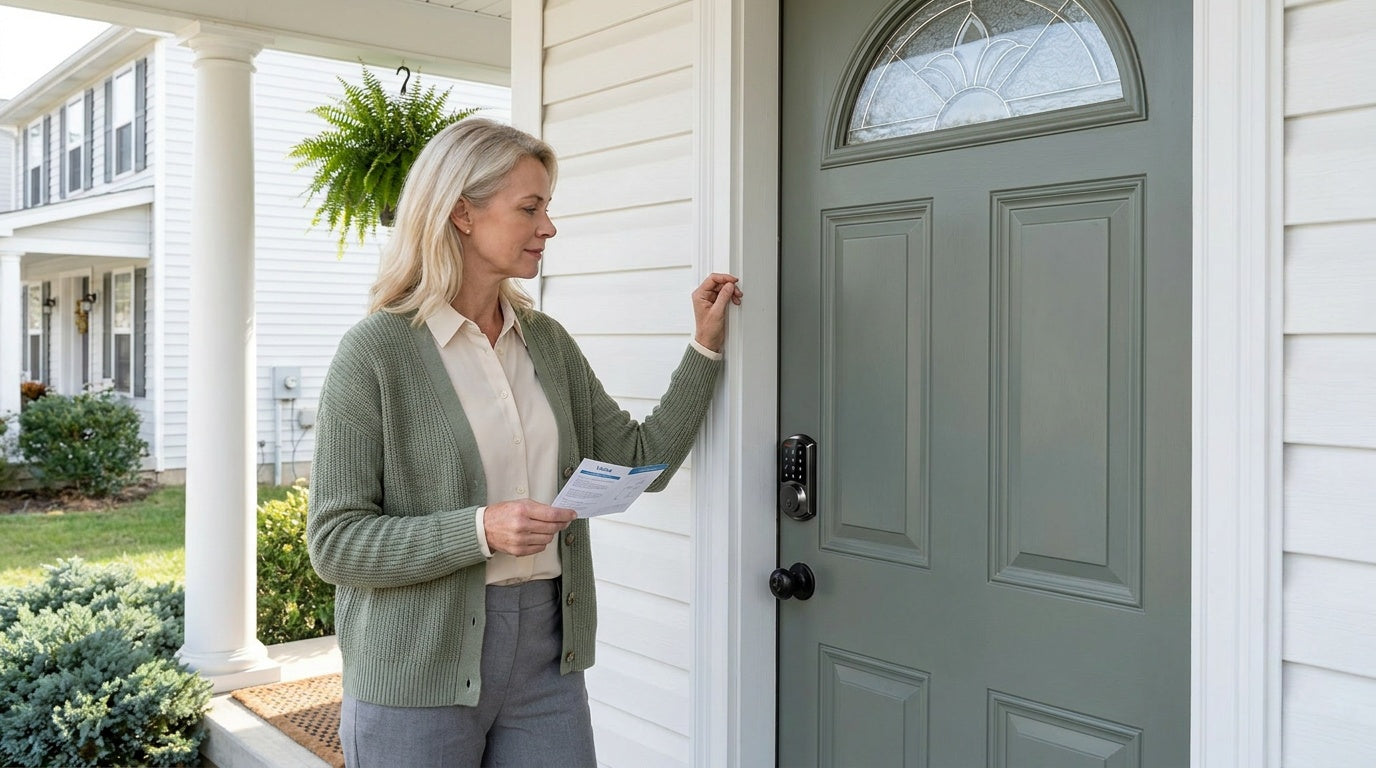
Your smart lock has been working quietly for months, and then something changes. Maybe you're moving out and want to wipe all the old codes before handing over the keys. Maybe a family member forgot the PIN and you've been locked out of your own front door. Or maybe you just bought a used lock and want a completely clean slate before trusting it with your home's security.
Whatever the reason, knowing how to factory reset a smart lock is one of the most useful things a homeowner can learn — and it's almost always faster and simpler than people expect. This guide walks you through the reset process for Veise's full lineup of smart locks, then covers what to do if a reset doesn't go smoothly so you have one reliable reference for your door. No special tools, no service calls, no guesswork.
Why You Might Need to Factory Reset Your Smart Lock
A factory reset wipes a smart lock back to its original out-of-the-box state: all user codes, fingerprints, key fob pairings, and app connections are erased. It's a hard refresh, not just a code change. Most homeowners reach for this option in one of four situations:
- Moving or selling the home — clearing all stored credentials before a new owner or tenant takes over is basic security hygiene.
- Forgotten master code — if the programming code or admin PIN has been lost, a factory reset is often the only recovery path.
- Troubleshooting persistent errors — a lock that beeps oddly, refuses to accept new codes, or behaves erratically will often come back to life after a clean reset.
- Removing a previous user's access — landlords and short-term rental hosts sometimes need a full wipe between guests or tenants rather than manually deleting individual codes.
The reset process itself is almost always mechanical (a button sequence or a physical reset button), which means it works even when the app isn't connected and the Wi-Fi is down.
Before You Reset: What You'll Lose (and What to Back Up)
A factory reset is irreversible. Before you press anything, take two minutes to note what will be erased so you can set it up again afterward:
- All user access codes and the master programming code
- All enrolled fingerprints
- Any paired key fobs
- App pairing and account linkage (for smart locks)
- Any custom settings such as auto lock interval or volume preferences
If your lock is connected to a mobile app, delete the device from the app before resetting the hardware. On some lock models, failing to remove the device in the app first can leave a ghost device in your account that complicates re-pairing later. Once you've noted your settings and cleared the app pairing, you're ready to proceed.
How to Factory Reset a Veise Smart Lock
Veise designs, engineers, and manufactures its own locks — so reset procedures are consistent and well-documented across the lineup. The exact button sequence varies slightly by product category, so find yours below.
Veise Keypad Deadbolt / Veise Keypad Latch Lock
Veise keypad deadbolt locks are the most common model in the lineup, using a keypad code and physical key as primary entry methods, with select models also featuring a fingerprint reader. The keypad latch lock is a compact, integrated unit designed for interior doors, side entries, and spaces where a full deadbolt is not required, with KS03 (top knob) and KS04 (top lever) sharing the same structure and reset procedure. Across both product types, the reset process follows a similar button-based sequence:
- Wake up the lock and keep the door open and unlocked — Press any button to wake the lock. Make sure the door is open and the lock is in the unlocked position before proceeding.
- Remove the interior cover and one battery — Slide the interior battery cover off (Veise battery covers slide on and off — no cover screws). Remove one battery from the compartment.
- Press and hold the RES button — While the battery is removed, locate the small button labeled "RES" on the interior assembly and press and hold it.
- Reinstall the battery while holding the RES button — Keep the RES button pressed while reinstalling the battery. When the panel lights up and a long beep is heard, release the button. The latch bolt will extend automatically, or the thumb turn will rotate, indicating that the reset is complete.
- Re-program your master code — Follow the initial setup instructions in the manual to create a new programming code before adding any user codes.
For KS02 series models (with fingerprint) and RZ/KS01 series models (without fingerprint), the same reset sequence applies. If the lock does not respond, ensure fresh batteries are installed, as low power may prevent reset completion.
The keypad latch lock supports keypad code and physical key access only, with no fingerprint or app pairing functions, making the reset process simpler compared to connected models.
Veise Smart Lock w/ Gateway (G1 or G2)
Veise's Smart Lock w/ G1 and Smart Lock w/ G2 lines connect to a paired gateway device to enable remote app control and voice assistant access. Resetting these locks involves two separate steps: removing the device from the app first, then performing the hardware reset.
- Remove the lock from the app — Open the mobile app, navigate to your device, and select "Remove Device" or "Delete Device." Confirm the removal. This clears the lock from your account and prevents ghost device issues.
- Wake up the lock and keep the door open and unlocked — Touch the keypad or press any button to wake the lock. Make sure the door is open and the lock is in the unlocked position.
- Remove the interior cover and one battery — Slide the interior cover off (Veise battery covers slide on and off — no cover screws). Remove one battery from the compartment.
- Press and hold the RES button, then reinstall the battery — With the battery removed, press and hold the RES button. While holding it, reinstall the battery. When the panel lights up and you hear a long beep or voice prompt, release the button. The latch bolt will extend automatically or the thumb turn will rotate, confirming the reset is complete.
- Reset the gateway separately — If you're also clearing the gateway (for example, when moving), press and hold the gateway's reset button until its indicator light flashes, then release.
- Re-pair if needed — If you're keeping the same lock in the same home, simply re-add the lock in the app and re-pair it to the gateway following the original setup instructions.
Smart Lock w/ G1 is built on a single product series — the VE017 — and the entire line ships with multilingual voice prompts (English, Spanish, and French) and a USB-C emergency power port as standard, useful if batteries run low mid-reset. Smart Lock w/ G2 offers Apple Watch unlock and web portal access as unique features; voice prompts on G2 are English only. Both lines follow the same hardware reset sequence above.
Veise Wi-Fi Smart Lock
Veise's Wi-Fi smart locks connect directly to your home's 2.4 GHz Wi-Fi network, enabling remote app control, real-time alerts, and voice control via Alexa or Google Assistant without a separate gateway. Two series are available: the Touchscreen Wi-Fi Smart Lock (VE027 series) and the Push-Button Wi-Fi Smart Lock (VE012W series). Both follow the same reset process:
- Delete the device from the app first — Open the app, select your lock, and choose "Remove Device." This is especially important for Wi-Fi locks, as the lock holds an active cloud connection that needs to be severed cleanly.
- Wake up the lock and keep the door open and unlocked — Touch the keypad or press any button to wake the lock. Make sure the door is open and the lock is in the unlocked position.
- Remove the interior cover and one battery — Slide the interior cover off (Veise battery covers slide on and off — no cover screws). Remove one battery from the compartment.
- Press and hold the RES button, then reinstall the battery — With the battery removed, press and hold the RES button. While holding it, reinstall the battery. When the panel lights up and you hear a long beep or voice prompt, release the button. The latch bolt will extend automatically or the thumb turn will rotate, confirming the reset is complete.
- Re-connect to Wi-Fi and the app — Follow the in-app setup guide to reconnect the lock to your Wi-Fi network and your account.
The VE027 series includes a USB-C emergency power port, which is helpful if the batteries are completely dead before a reset — connect a USB-C power bank to power the lock temporarily, then perform the reset. The VE012W series uses a traditional press-button keypad interface. Both series use an 8 AA/LR6 alkaline battery design for stronger signal and longer-lasting power reserve compared to standard 4 AA setups.
Reset Troubleshooting: When Things Don't Go as Planned
Most resets finish in under a minute, exactly as described above. But if the lock doesn't cooperate, the cause is almost always one of a handful of common issues — and each has a simple fix. Work through the sections below before assuming anything is wrong with the lock itself.
The Lock Won't Respond to the Reset
If you hold the RES button and reinstall the battery but nothing happens — no lights, no beep, no voice prompt — the cause is almost always power. Swap in a complete set of fresh batteries rather than partially used ones, and make sure each cell is seated in the correct orientation. On the Smart Lock w/ G1 (VE017 series) and the Touchscreen Wi-Fi Smart Lock (VE027 series), you can connect a USB-C power bank to the emergency power port to rule out the batteries entirely. Finally, confirm you're holding the button labeled "RES" continuously while the battery goes back in — releasing it too early interrupts the sequence before the reset can register.
Old Codes Still Work After the Reset
If a previous user code still unlocks the door after what looked like a successful reset, the reset most likely didn't complete. The wipe is only confirmed when the panel lights up and you hear a long beep or voice prompt, followed by the latch bolt extending or the thumb turn rotating on its own. If you let go of the RES button before that confirmation, the lock may have simply rebooted without clearing its memory. Repeat the full sequence and keep holding RES until you both see and hear those confirmation signals, then test with the door open to be sure the old codes are truly gone before you rely on the lock.
The App Still Shows the Old Lock
On app-connected models, a hardware reset clears the lock's onboard memory but does not automatically remove the lock from your account in the app. If the app still lists the old lock — or refuses to add it again — open the app, find the device, and choose "Remove Device" or "Delete Device" to clear the leftover entry. This is exactly why removing the device in the app before the hardware reset is recommended: doing it in that order avoids the ghost-device entry that blocks clean re-pairing. If you already reset the hardware first, just delete the stale entry manually, then add the lock back as a new device.
Odd Behavior After a Reset
Occasionally a lock behaves unexpectedly right after a reset — the keypad feels unresponsive, the motor sounds different, or setup won't start. First, make sure the door is open and unlocked so the bolt can move freely while you reprogram; a bolt jammed against the strike plate can easily mimic a malfunction. Next, confirm the batteries are fresh, since a reset followed immediately by low-power operation can produce erratic behavior. If the lock still won't run through its normal setup prompts, remove and reinstall all of the batteries to power-cycle it once more. Anything that persists beyond that is worth a call to Veise's US-based phone and email support, who can walk you through it.
After the Reset: What to Do Next
Once the reset is confirmed, your lock is essentially a brand-new device. Before closing the door and walking away, work through these steps to make sure everything is set up securely:
- Set a new master programming code immediately — Don't leave the lock in its default state. Choose a code that isn't your address, birthday, or anything obvious.
- Add user codes one at a time — For households with multiple people, add codes individually so each person has their own unique PIN. This makes it easy to remove access for one person without changing everyone else's code.
- Re-enroll fingerprints if applicable — On fingerprint-equipped models, enroll each finger eight times during setup to ensure reliable recognition across different angles and grip pressures.
- Reconnect to the app and re-pair any accessories — For smart locks, re-add the device in the app, reconnect to Wi-Fi or the gateway, and re-pair any key fobs.
- Test everything before closing up — With the door open, test each unlock method to confirm everything is working before you rely on it as your primary entry.
Taking 10 minutes to complete setup properly after a reset saves the hassle of troubleshooting again later. If you're setting up a Veise lock for the first time after a reset and run into any issues, US-based phone and email support is available to walk you through the process.
Frequently Asked Questions
Will a factory reset delete all the access codes stored in my smart lock?
Yes. A factory reset removes all stored data from the lock, including every user code, fingerprint record, key fob pairing, and app connection. The lock returns to the same state it was in when it shipped from the factory. You will need to reprogram everything from scratch after the reset is complete.
Can I factory reset my smart lock if the batteries are dead?
Not directly, because the lock needs power to process the reset command. Every Smart Lock w/ G1 (the entire VE017 series) and every Touchscreen Wi-Fi Smart Lock (the entire VE027 series) includes a USB-C emergency power port that lets you connect a power bank to temporarily power the lock so you can complete the reset. For locks without this port, replacing the batteries before attempting the reset is the only option.
Do I need to remove the lock from the app before doing a hardware reset?
For any lock with app connectivity (smart locks and Wi-Fi locks), yes — removing the device from the app before doing the hardware reset is strongly recommended. Skipping this step can leave a ghost device in your account that may prevent clean re-pairing later. For keypad-only locks with no app connection, this step doesn't apply.
How do I reset a smart lock if I've forgotten the master code?
If the master programming code is lost, the physical reset button on the interior of the lock is your recovery path. The hardware reset bypasses software authentication entirely, which is why the button is inside the lock body (accessible only when you physically open the door). After the reset, you can set a new master code from scratch.
Will resetting my smart lock affect the door hardware itself?
No. A factory reset is a software/firmware operation. It clears stored data — codes, fingerprints, pairings — but has no effect on the mechanical parts of the lock. The bolt, latch, cylinder, and any physical key function exactly the same after a reset as they did before.
How long does it take to factory reset a smart lock?
The reset itself typically takes under 30 seconds once you've located the reset button. The full process — including removing the device from the app, performing the hardware reset, and completing initial reprogram — usually takes 5 to 15 minutes depending on how many users and unlock methods you need to set up again.
Can someone reset my smart lock without my knowledge?
Performing a hardware reset requires physical access to the interior side of the lock, which means the door must be open. This is an intentional security design — a thief outside your door cannot reset the lock remotely. As long as your door is closed and locked, a factory reset from outside is not possible on any well-designed residential smart lock.
A factory reset is one of the simplest and most powerful maintenance steps you can take with a smart lock. Whether you're moving into a new home, troubleshooting a stubborn error, or clearing access after a change in household, the process almost always takes just minutes and requires nothing more than fresh batteries. The key is knowing where your model's reset button lives and making sure to remove the device from the app before you start — that simple two-step sequence covers virtually every reset scenario you'll run into.
If you're in the market for a lock that's genuinely easy to set up, reset, and manage without a subscription or cloud dependency, Veise's lineup covers every door and every household. From simple keypad deadbolts to fully connected Wi-Fi smart locks with remote app access and voice control, every Veise lock is built to be straightforward from day one.
Have Questions About Your Veise Lock?
Our US-based support team is ready to help — whether you need help with a reset, a setup question, or choosing the right lock for your door.
Contact Us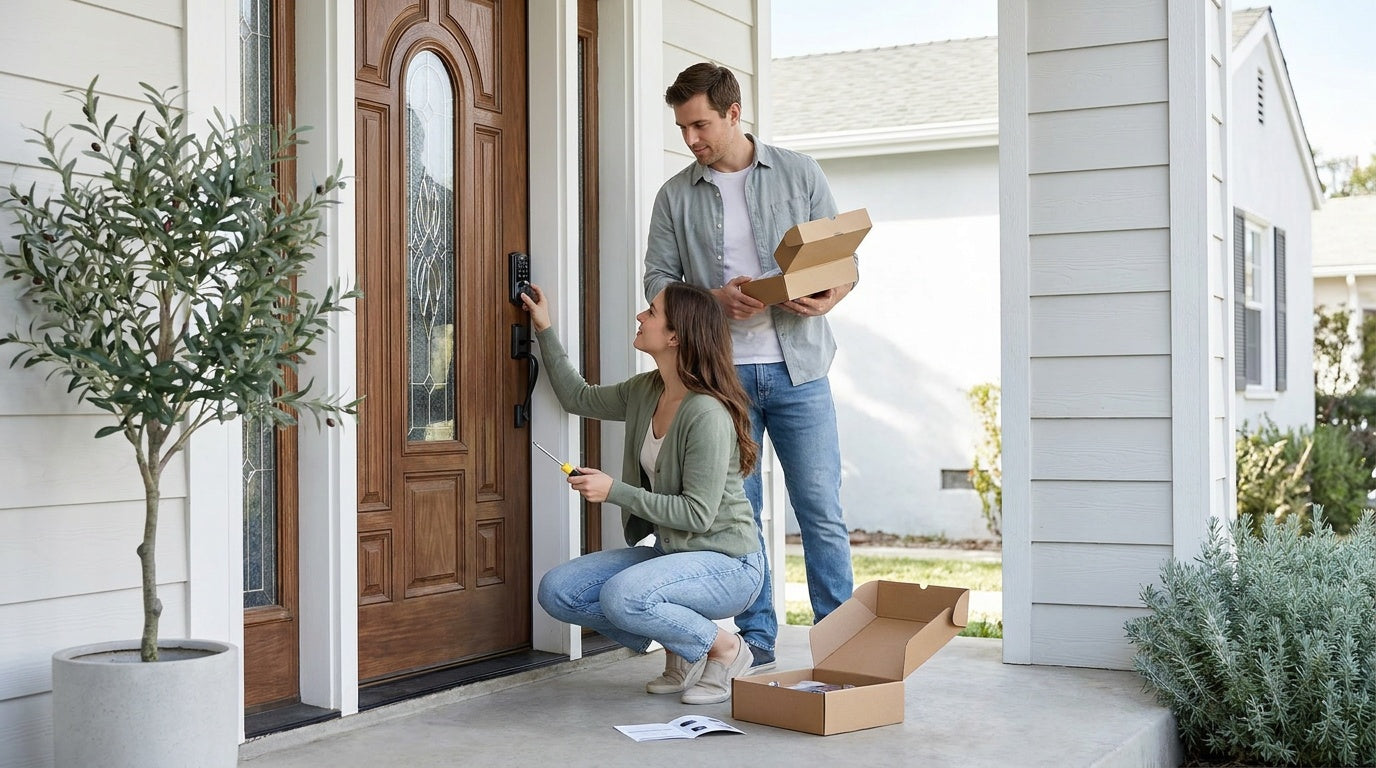

Leave a comment
This site is protected by hCaptcha and the hCaptcha Privacy Policy and Terms of Service apply.