
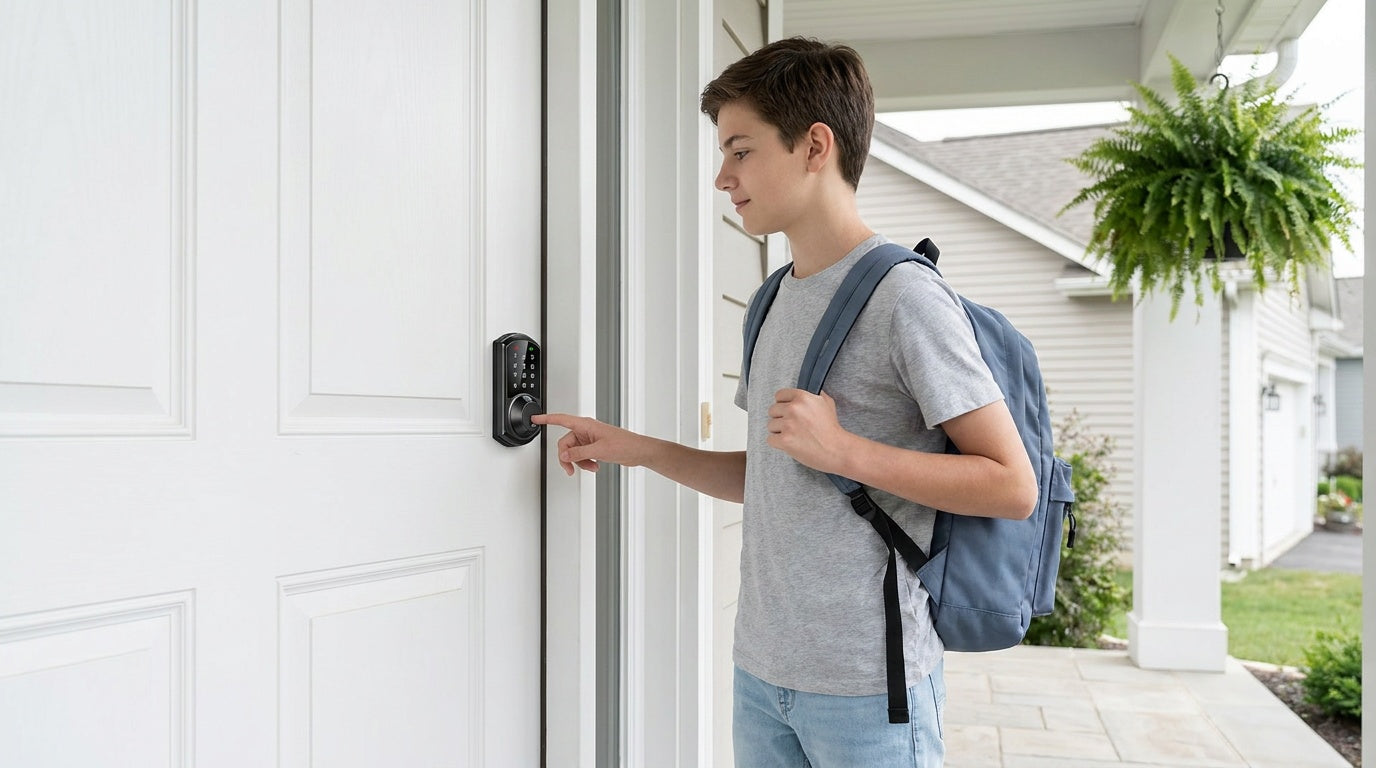
If you've ever juggled a bag of groceries while digging for your house key, a fingerprint door lock solves that problem instantly. Adding a fingerprint to your door lock takes just a few minutes, requires no tools, and turns your front door into something that recognizes you — not just a key anyone could copy.
This guide walks you through the complete process of enrolling fingerprints on a Veise smart lock: from checking compatibility and setting up the admin fingerprint, to adding household members and troubleshooting common read errors. Whether you're setting up a lock for yourself, your kids, or managing access on a rental property, you'll have everything running smoothly by the time you finish reading.
Why Use a Fingerprint on Your Door Lock?
A fingerprint is the most personal credential you can use on a door lock. Unlike a keypad code that can be shared, forgotten, or shoulder-surfed, a fingerprint is physically tied to one person. It's also faster than any other unlock method — Veise's fingerprint scanner reads and verifies in under 0.3 seconds, which means the door is already releasing as your hand moves toward the handle.
For families, fingerprint access is especially practical. Kids who tend to forget codes can still get inside reliably. Parents get the peace of mind of knowing that only the people they've enrolled can use the fingerprint reader — everyone else is redirected to a keypad code or physical key. For those managing a short-term rental or a vacation cabin, fingerprint access for trusted long-term guests adds a layer of convenience without handing over a physical key that may never come back.
Beyond convenience, fingerprint data on Veise locks stays entirely on the device. Fingerprints are processed and stored locally using an on-device AI chip — no cloud account, no Internet upload, no third-party database. That on-device approach means your biometric data never leaves the lock.
Which Veise Locks Support Fingerprint?
Not every lock in the Veise lineup includes a fingerprint reader, so it's worth confirming your model before you begin. Here's how fingerprint support breaks down by category:
- Keypad Deadbolt Locks: Fingerprint is available on the KS02 series (the "with fingerprint" line). The KS02A is a keypad-only/deadbolt-only form factor; the KS02B, KS02C, and KS02D come as handle-set bundles.
- Keypad Latch Locks: The two current SKUs (KS03 and KS04) do not include a fingerprint reader. These use keypad code and physical key only.
- Smart Locks w/ G1: Fingerprint is included on all G1 models as a standard feature — no need to check individual SKUs.
- Smart Locks w/ G2: Both fingerprint and non-fingerprint SKUs exist in the G2 line. Confirm your specific model in the product listing.
- Wi-Fi Smart Locks: Fingerprint is included on both the VE027 series (touchscreen) and the VE012W series (push-button keypad).
If you're shopping for a new lock and fingerprint is a priority, the Smart Lock w/ G1 line is the most straightforward choice — every model ships with fingerprint, multilingual voice prompts (English, Spanish, and French), and a USB-C emergency power port as standard features. All Veise locks are designed for wood doors with a standard thickness of 1-3/8" to 2" and require a full lock replacement rather than an overlay.
Before You Start: What You Need
Fingerprint enrollment is done entirely through the lock's built-in keypad — no tools, no app required for this step. Before you begin, make sure the following are in order:
- Fresh batteries installed: Low batteries can interrupt enrollment mid-process. Install fresh AA/LR6 alkaline batteries before you start (Veise locks don't ship with batteries, so pick up a set in advance).
- Master code ready: The master code is required to access the lock's settings menu. Every Veise lock ships with a preset default master code (printed in the included user manual), so you can enter programming mode right away — the manual then walks you through changing it to one of your own.
- Dry, clean fingers: Moisture, lotion, or dirt on the fingertip reduces scan quality and can cause enrollment failures.
- The lock manual on hand: Button sequences vary slightly by model. Keep the included manual nearby as a reference for your specific SKU.
Step 1 – Enroll Fingerprints (Admin and Users)
Admin and user fingerprints are enrolled in the same general way: you enter programming mode using the master code, then scan the finger eight times. Additional household members are added using the same process. Always refer to your specific model’s manual, as button sequences and enrollment steps may vary across different series.
- Enter programming mode and select the fingerprint enrollment option. Use the keypad’s multi-function button together with your master code, following the sequence shown in your manual, to access the settings menu. The fingerprint is enrolled by scanning the finger eight times.
- Place the finger on the scanner eight times. The lock captures the fingerprint from multiple angles and pressure points across eight scans — this is what makes recognition reliable later, even if the finger is at a slight angle or pressed a little harder than usual. The scanner beeps once after each successful scan; once all eight are captured, the green light flashes to confirm enrollment. Lift and reposition the finger fully between scans; don't hold it down continuously. If the user is a child with smaller fingers, make sure they press firmly enough for a full read each time.
- Repeat for additional users. Veise locks store multiple unique fingerprints per device — enough for a household of any size. You can also enroll two fingerprints for the same person (for example, both their index and middle finger) for added reliability.
Once a fingerprint is enrolled, that person can unlock the door by touch alone. For families where parents want to monitor when kids arrive home, pairing a fingerprint lock with a Wi-Fi Smart Lock or a Smart Lock w/ G1 or Smart Lock w/ G2 (gateway-paired) lets you review entry history and receive activity alerts through the app — so you know the moment your child's fingerprint was used to open the door.
Step 2 – Test and Verify Every Fingerprint
Before closing the door and walking away, test every enrolled fingerprint with the door in the open position. This is an important step that's easy to skip — but it saves a frustrating lockout situation later. Place each enrolled finger on the scanner and confirm the bolt retracts cleanly. If any fingerprint fails to trigger unlock after two or three attempts, delete and re-enroll that fingerprint before trusting it as a daily access method.
Also test from slightly different finger positions — a tilted angle, a little more or less pressure than during enrollment. A well-enrolled fingerprint (eight full scans across varied contact points) should recognize reliably even with minor variation. If recognition is inconsistent at this stage, re-enroll using a clean, dry finger and make sure each of the eight scans captures a slightly different area of the fingertip.
How to Delete a Fingerprint
Removing a fingerprint is as straightforward as adding one, though the process differs between standard keypad locks and connected smart locks. On keypad deadbolt and keypad latch locks, deletion is performed directly on the lock by entering programming mode with the master code. To delete a fingerprint, the fingerprint being removed must be scanned during the process, which means the user must be present. On connected locks (Smart Lock w/ Gateway 1/2 and Wi-Fi Smart Lock), fingerprints can be deleted either at the lock or through the app. App-based deletion does not require the user whose fingerprint is being removed to be present.
Tips for Reliable Fingerprint Reads
A fingerprint lock is only as good as the consistency of your scans. A few habits make a noticeable difference in day-to-day reliability:
- Enroll in dry conditions. Sweaty or damp fingers during enrollment lead to a template that only works well when the finger is also wet — and vice versa. Enroll in the same general condition you'll use the lock daily.
- Use the same finger positioning every time. Press the pad of your fingertip against the sensor squarely — not just the tip or the side edge.
- Enroll multiple fingers for key users. If one hand is often holding groceries or a bag, enroll the other hand's index finger as a backup for that user.
- Clean the sensor periodically. Dust and smudge buildup on the scanner surface degrades read accuracy over time. A soft, dry cloth works fine.
- Avoid enrolling injured fingers. Cuts, blisters, or peeling skin on the enrolled finger will cause recognition failures until the skin heals. Keep a keypad code as a backup during recovery.
Troubleshooting: When the Scanner Won't Recognize Your Finger
Even a well-set-up fingerprint lock occasionally has a bad read. Here are the most common causes and how to fix them:
- Wet or dirty finger: Wipe dry and try again. This is the most common cause of single-attempt failures and usually resolves immediately.
- Finger angle is too different from enrollment: Adjust your placement to match how you positioned your finger during setup. If the problem persists, delete and re-enroll with a wider variety of angles across the eight scans.
- Low battery: A weak battery can cause the scanner to underperform. The lock warns you with a voice or beep prompt (and a push notification through the app on connected models) before the batteries run out. Veise Wi-Fi Smart Locks use 8 AA alkaline batteries for stronger, more stable power — replace all of them as a set with fresh AA/LR6 alkaline cells, and don't mix old and new batteries or different brands.
- Sensor needs cleaning: A smudged sensor surface scatters the optical or capacitive read. Wipe with a soft dry cloth and retry.
- Enrollment was incomplete: If the original enrollment was interrupted (low battery, rushed placement), the stored template may be too thin to work reliably. Delete and re-enroll the fingerprint from scratch with all eight scans completing successfully.
In any lockout situation, your keypad code and physical key backup remain available on all Veise fingerprint locks. On select models in the VE017 series (Smart Lock w/ G1) and the VE027 series (Touchscreen Wi-Fi Smart Lock), a USB-C emergency power port lets you connect an external battery pack to power the lock if the internal batteries die before you can replace them.
Frequently Asked Questions
How many fingerprints can I store on a Veise lock?
Veise locks store multiple unique fingerprints per device — enough for a full household. Capacity varies by model, so check your specific SKU's product page for the exact number. All fingerprints are stored locally on the lock itself using an on-device AI chip, with no cloud upload or Internet connection required.
Do I need the app to add a fingerprint?
No. Fingerprint enrollment is performed directly on the lock using the fingerprint sensor and programming functions built into the lock. Because the fingerprint must be physically scanned during enrollment, it cannot be added through the app. On supported models, the app can be used for features such as activity monitoring, user management, and remote control, but fingerprint enrollment must still be completed at the lock.
How long does fingerprint enrollment take?
Not long at all. The eight-scan capture itself takes only about 10 to 15 seconds — the scanner beeps once after each successful read, and the green light flashes when all eight are done. Allowing for the time to lift and reposition your finger between scans, plan on roughly half a minute per fingerprint. Even with a quick open-door test for each finger, enrolling two or three people takes just a few minutes total.
Why does the scanner ask me to scan my finger eight times?
Eight scans allow the lock to build a fingerprint template from multiple angles, pressure levels, and contact points. This makes everyday recognition reliable even when your finger is pressed at a slightly different angle than during enrollment. Locks that capture fewer scans tend to be more sensitive to variation, leading to frustrating read failures.
Can I add a fingerprint for someone who isn't present?
No — fingerprint enrollment requires the actual finger. The person being enrolled needs to be physically present at the lock to complete the eight-scan process. For granting remote or temporary access to someone who isn't on-site, use a keypad code instead. On Wi-Fi Smart Locks and gateway-paired smart locks, temporary codes can be managed through the app from anywhere.
Is my fingerprint data secure?
Yes. Veise fingerprint locks process and store all biometric data locally on the lock using an on-device AI chip. Your fingerprint data is never uploaded to a cloud server, never tied to an online account, and never transmitted over the Internet. If the lock is reset or the fingerprint is deleted, the data is removed from the device permanently.
What should I do if a fingerprint stops working after working fine for months?
Seasonal changes are the most common culprit — winter dryness and summer humidity both alter how fingerprint ridges read on the sensor. A quick re-enrollment during the new season usually resolves it. Also check for cuts, calluses, or peeling skin on the enrolled finger, and clean the sensor surface before re-testing.
Which Veise lock is best if fingerprint access is my top priority?
The Smart Lock w/ G1 is the strongest all-in-one choice if you want fingerprint plus remote monitoring — every model in the G1 line includes fingerprint as a standard feature, along with multilingual voice prompts and a USB-C emergency power port. If you want fingerprint without remote app features, the KS02 series Keypad Deadbolt is a solid, affordable standalone option priced within the $30–$180 range.
Adding a fingerprint to your door lock is one of the fastest upgrades you can make to your home's security and daily convenience. The process takes just a few minutes, requires no tools or technical background, and once done, your door simply knows who you are. For households with kids, multiple residents, or anyone managing a rental property, fingerprint access removes the hassle of keys and codes while keeping control firmly in your hands.
Veise fingerprint locks are built to make this setup as straightforward as possible — with local on-device data storage and a keypad code plus physical key as reliable backups. Whether you choose a keypad deadbolt with fingerprint, a Smart Lock w/ G1 for full remote access, or a Wi-Fi Smart Lock for built-in connectivity, the fingerprint experience is consistent across the lineup.
Need help choosing the right fingerprint lock for your door?
Our US-based support team is ready to answer your questions — by phone or email, no bots, no runaround.
Contact UsOr browse the full Veise lineup: View All Products

Leave a comment
This site is protected by hCaptcha and the hCaptcha Privacy Policy and Terms of Service apply.