
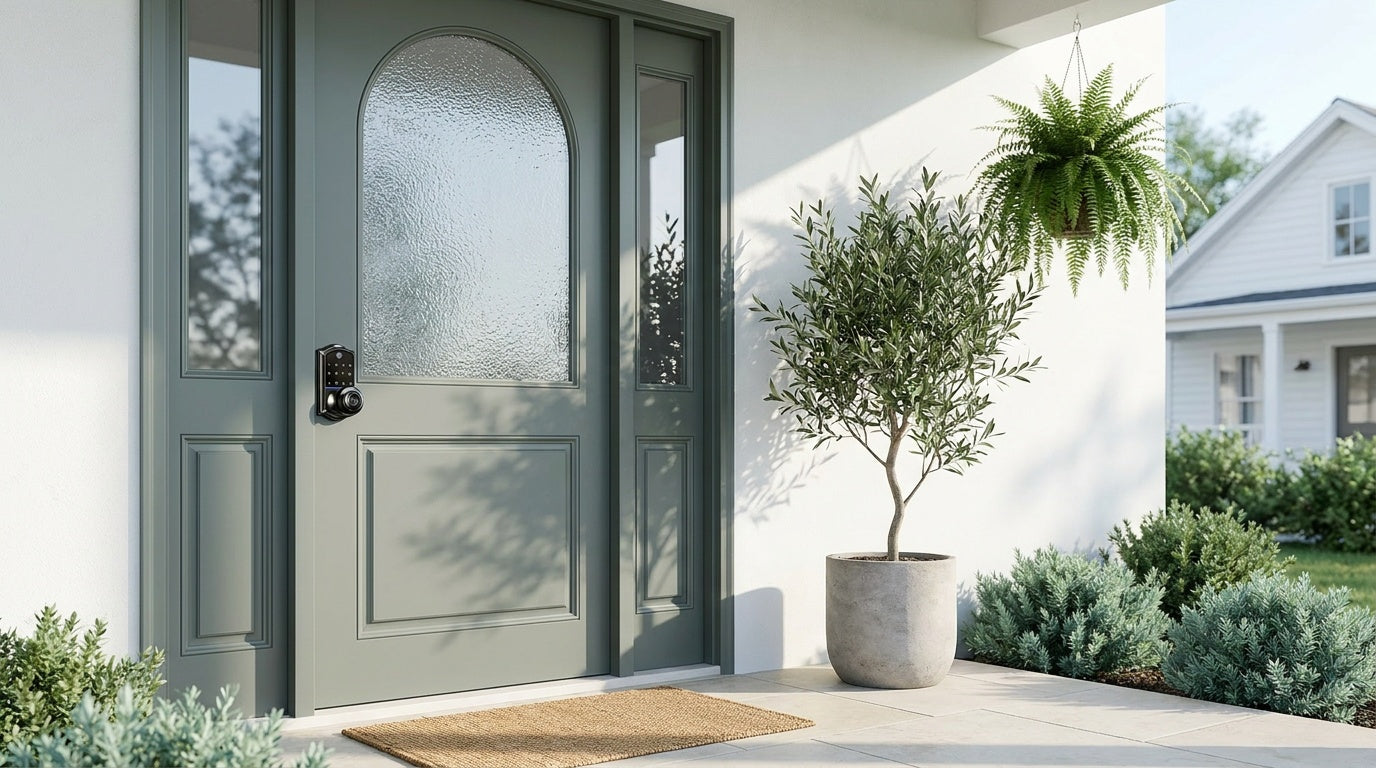
You're standing at your front door, hands full, and the lock isn't doing what it's supposed to do. Whether the keypad is dark, the fingerprint won't scan, the app won't connect, or the deadbolt is grinding — a smart lock problem always feels urgent in the moment.
The good news: most smart lock issues have straightforward fixes that take less time to solve than the frustration they cause. This guide walks you through every common problem, organized by symptom, so you can diagnose and fix the issue fast — without wading through a manual or waiting on hold with support. Whether you have a keypad deadbolt, a gateway-paired smart lock, or a Wi-Fi smart lock, the answers are below.
Why Smart Locks Stop Working
Smart locks combine mechanical hardware with electronics, and problems can originate in either layer. A dead battery is a hardware issue. A connectivity dropout is a software issue. A jammed bolt is a door-alignment issue. Because the causes are different, the fixes are different too — which is why a generic "restart and reset" approach often misses the mark. Before jumping to a factory reset, work through the specific symptom that matches your situation.
The most common root causes fall into five categories: power failure, credential errors, mechanical obstruction, connectivity loss, and firmware or app glitches. Each section below addresses one category with targeted steps.
Fix 1: Dead or Low Battery
Battery failure is the single most common reason a smart lock stops responding. When power drops below a usable threshold, keypads go dark, motors refuse to turn, and app commands time out. Most smart locks give you early warning through a low-battery beep or indicator light — but it's easy to ignore those alerts until the lock goes fully silent.
What to check:
- Listen for a slow or labored motor sound when you enter a code — this usually signals low power before a full shutdown.
- Check whether the keypad backlight is dimmer than usual or unresponsive to touch.
- All Veise locks provide a low-battery alert. Take it seriously the first time it appears. Alerts may be displayed through the app (on supported models), a lock-side voice prompt or beep, and a red flashing indicator light on the lock.
How to fix it: Replace all batteries at once with fresh AA/LR6 alkaline cells. Don't mix old and new batteries, don't mix batteries from different brands, and avoid rechargeable NiMH cells — their lower voltage (1.2V vs. 1.5V) can cause erratic behavior. After replacement, the lock should power on within a few seconds and resume normal operation without any reprogramming.
If you're locked out and the battery is completely dead, some smart lock models include an emergency power option. On the VE017 series (Smart Lock w/ G1) and the VE027 series (Touchscreen Wi-Fi Smart Lock), a USB-C emergency port on the front panel — standard across every SKU in those two series — lets you touch a power bank to the port and enter your code to get inside. This is a short-term bridge — replace the internal batteries as soon as you're in.
Prevention tip: Replace batteries regularly, or at the first low-battery alert. Veise's Wi-Fi smart locks use 8 AA batteries instead of the more common 4-cell setup, which delivers a stronger, more stable power reserve so you have more time between replacements and fewer unexpected shutdowns.
Fix 2: Keypad Not Responding or Entering Wrong Code
A keypad that lights up but won't accept codes, or a code that suddenly stops working, is almost always a credential or lockout issue rather than a hardware failure. Veise locks include a security lockout feature that temporarily disables the keypad after 10 wrong attempts in a row to prevent brute-force entry.
What to check:
- Confirm you're entering the correct code. If the lock was set up by someone else, verify the current active code with them.
- Check whether the keypad is in a temporary lockout (Veise locks signal lockout with a beep, a voice prompt, or an indicator light — varies by model). Wait 3 minutes for the lockout to clear, then try again with the correct code.
- If the keypad is unresponsive to touch (no backlight, no beep), the issue is likely power — go back to Fix 1.
- Check whether the code was set up as a one-time or time-limited access code that has already expired.
How to fix it: If you have access to the physical key, use it to enter while you troubleshoot the code. Access the programming mode (refer to your model's manual) to verify or reset the code. If you've locked yourself out of programming mode, a factory reset will be necessary — see the "When to Factory Reset" section below.
For households managing keypad locks with multiple users, it's worth auditing your code list periodically. Codes shared with guests, contractors, or temporary visitors should be deleted after use so they don't accumulate and cause confusion about which code is currently active.
Fix 3: Fingerprint Not Recognized
Fingerprint readers are fast and convenient — Veise's sensor reads and responds in under 0.3 seconds — but they're sensitive to the condition of both the finger and the sensor surface. A fingerprint rejection that wasn't happening last week usually has a simple explanation.
Common causes:
- Dirty or wet finger: Moisture, lotion, or dirt on the fingertip scatters the scan pattern. Dry and wipe your finger clean before trying again.
- Dirty sensor: Dust, grime, or smudges on the sensor glass reduce accuracy. Wipe the sensor gently with a dry microfiber cloth.
- Angle mismatch: If the finger was enrolled at one angle and presented at a different one, the system may not match. Try placing the finger flat and centered on the sensor.
- Skin changes: Cuts, dry skin, or seasonal skin changes (very common in winter) can temporarily alter fingerprint patterns enough to cause a mismatch.
How to fix it: If cleaning the sensor and adjusting your technique doesn't resolve it, delete the stored fingerprint and re-enroll it. Veise locks build a reliable template by capturing your finger eight times during enrollment, covering different angles and pressure levels. Taking a moment to enroll carefully — varying your finger position slightly during each of the eight captures — will give you more consistent recognition day-to-day.
Fingerprints on Veise locks are stored directly on the device using a local AI chip, with no cloud account required and no data leaving the lock. This means re-enrollment is fast, private, and doesn't require an Internet connection.
Fix 4: App Control Not Working
App-based control is one of the most useful features of a connected smart lock, and also one of the more frustrating things to troubleshoot when it stops responding. The fix depends on which type of smart lock you have, because the connection architecture is different.
For Smart Lock w/ Gateway 1/2: These locks communicate through a paired gateway hub that bridges the lock to your home network. If app control stops working, check the gateway first — confirm it's powered on, its indicator light is active, and it's connected to your router. An unplugged or offline gateway will cut off all remote and app-based commands, even though the lock itself is working fine locally. Restart the gateway by unplugging it, waiting 10 seconds, and plugging it back in. If the gateway reconnects but the lock still doesn't respond, try restarting the lock by removing and reinserting the batteries.
For Wi-Fi Smart Locks: These locks connect directly to your home network without a separate hub. If app control fails, check that your home Wi-Fi is up and that the lock is still connected to the correct network (not a guest network and not a 5 GHz band — Veise smart locks support 2.4 GHz Wi-Fi only, not 5 GHz). Within the app, check the lock's connection status. If it shows offline, try toggling your router off and back on, then wait for the lock to reconnect automatically.
Worth knowing: Even when your Internet connection is down, app control continues to work locally as long as you're within short-range wireless distance of the lock. Only long-distance remote features — checking lock status from another city, sending a one-time code to a guest remotely — require a live Internet connection.
Quick steps for any app issue:
- Force-close and reopen the app — clears cached state that can cause false "offline" readings.
- Check for app updates — an outdated app version can lose compatibility with updated lock firmware.
- Check for lock firmware updates — log into the app and look for a firmware update notification. Installing the latest version often resolves connectivity bugs.
- Remove and re-add the lock in the app — if the lock shows as permanently offline and none of the above work, deleting the device from the app and pairing it again fresh usually resolves stubborn connection issues.
Fix 5: Deadbolt Jammed or Hard to Turn
When a smart lock accepts your code or fingerprint but the bolt doesn't move — or moves with a grinding, straining sound — the problem is almost always mechanical rather than electronic. A bolt that was working fine and suddenly stiffens up usually points to door misalignment, which is very common after seasonal temperature swings cause wood to expand or contract.
How to diagnose it: Open the door and try extending and retracting the bolt manually using the thumbturn. If it moves smoothly with the door open but stiffens when the door is closed, the door has shifted and the bolt is rubbing against the strike plate opening. If the bolt is stiff even with the door open, there's internal debris or a mechanical issue with the lock body itself.
How to fix it:
- Misaligned strike plate: Loosen the strike plate screws slightly and shift the plate up or down to align with the bolt path. Tighten and test. In more severe cases, the strike plate opening may need to be slightly adjusted with a chisel or file.
- Loose lock body: Check that all mounting screws are tight. A lock that has worked loose from the door can cause the bolt to bind against the frame.
Veise locks are designed for wood doors with a standard thickness of 1-3/8" to 2". If your door is outside this range or is made of fiberglass or metal, compatibility issues may cause persistent alignment problems that standard troubleshooting cannot fully resolve.
Fix 6: Auto Lock Not Engaging
Auto lock is one of the most practical features a smart lock offers — the door secures itself after a set interval without anyone having to remember to lock it. When auto lock stops working, it's almost always a settings or door-position issue.
What to check:
- Confirm that auto lock is enabled in the lock's settings (it's typically toggled on via the programming menu or through the app on connected models).
- Check the configured interval. Veise locks let you set auto lock between 10 and 99 seconds on Keypad Deadbolt and Keypad Latch locks, and between 10 and 180 seconds on Smart Lock w/ Gateway 1/2 and Wi-Fi smart locks — confirm the interval is set to what you intended and hasn't been accidentally changed.
If the settings look correct and the door is closing properly but auto lock still doesn't trigger, try power cycling the lock by removing and reinserting the batteries. A brief reset of the lock's operating state is often enough to restore normal behavior.
Fix 7: Voice Control Not Responding
Alexa and Google Assistant integration is a genuinely useful hands-free feature, but it requires a properly connected smart lock and a correctly set up smart home routine. If voice commands suddenly stop working, work through these steps in order.
First, determine which type of lock you have. Wi-Fi smart locks connect to Alexa or Google via cloud-based smart home integration (through account linking in the Alexa or Google Home app), while Smart Lock w/ Gateway 1/2 models connect through a paired gateway — if the gateway is offline, voice control will not work even if the lock itself is functioning normally.
Steps to restore voice control:
- Confirm the lock shows as "online" in Alexa or Google Home — if it shows offline, resolve the connectivity issue first (see Fix 4).
- Re-link the skill or integration — in the Alexa or Google Home app, disable and re-enable the smart home skill associated with your lock. This refreshes the authentication token and often resolves "unresponsive device" errors.
- Check the device name and voice command — ensure you are using the exact name shown in the Alexa or Google Home app.
- Restart your smart speaker — unplug the Echo or Nest device, wait 10 seconds, and plug it back in. A fresh connection often resolves stale state issues on the speaker side.
When to Factory Reset Your Smart Lock
A factory reset wipes all stored codes, fingerprints, and app connections — so it should be a last resort, not a first step. That said, there are specific situations where a reset is the right call: you've inherited a lock that was previously set up by someone else, you've lost access to the administrator code, or the lock is in a persistent glitched state that none of the targeted fixes above resolved.
Before resetting, make sure you have your physical key available — a reset may leave the lock in an unprotected state until you reprogram it. After the reset, treat the setup process like a brand-new installation: set a new administrator code first, then add user codes and fingerprints, then reconnect to the app. This fresh-start approach often catches setup errors that were causing the original problem.
For specific reset instructions, refer to the manual for your model or contact Veise's US-based support team directly — factory reset steps vary by series and doing it incorrectly can extend the troubleshooting process.
How to Prevent Future Smart Lock Issues
Most smart lock problems are preventable with a small amount of routine maintenance. A few habits, done consistently, will keep your lock running reliably for years.
- Replace batteries on a schedule. Don't wait for the low-battery alert — add battery replacement to your annual home maintenance routine, ideally at the start of winter when cold temperatures accelerate power drain.
- Keep the keypad and fingerprint sensor clean. A quick wipe with a dry cloth every couple of weeks keeps the sensor accurate and the keypad responsive. Avoid cleaners with solvents or alcohol, which can damage the keypad surface.
- Audit your access codes periodically. Delete codes that are no longer in use. Temporary guest codes should be removed after the visit ends. A shorter, cleaner code list reduces confusion and improves security.
- Check door alignment seasonally. Wood doors move with humidity and temperature changes. A quick visual check each season — does the door close smoothly, does the bolt extend without resistance — takes 30 seconds and catches misalignment before it becomes a mechanical problem.
- Keep firmware updated. Firmware updates fix known bugs and security vulnerabilities. Check for updates in the app every few months and install them as they become available.
If you're still shopping for a lock or considering an upgrade, it's worth choosing a lock built to last from the start. Veise designs, engineers, and manufactures its own locks — no OEM reselling, no third-party hardware surprises. The full lineup, from keypad deadbolts to Wi-Fi smart locks to Smart Locks w/ G1 and Smart Locks w/ G2, is priced from $30 to $180 with no subscription fees, local data storage, and DIY 15-minute installation with a screwdriver.
Frequently Asked Questions
Why is my smart lock keypad not lighting up?
A dark keypad almost always means the batteries are dead or critically low. Replace all batteries with fresh alkaline cells. If the keypad stays dark after a fresh battery install, check that the batteries are seated correctly with the correct polarity. If the lock still won't power on, contact support — there may be a connection issue between the battery compartment and the lock's circuit board.
Can I still get into my smart lock if the app is down?
Yes. All Veise smart locks include a physical key backup, and all models also support keypad code entry independent of any app or connectivity. If the app is temporarily unavailable, use your physical key or stored code to get in.
Why does my smart lock keep locking itself unexpectedly?
This is typically the auto lock feature engaging. Check your auto lock settings — the interval may be set shorter than you intend (as low as 10 seconds). If you'd prefer the lock not to engage automatically, you can disable auto lock in the programming menu or, on connected models, through the app.
My fingerprint worked yesterday but not today — what changed?
Skin condition changes are the most common culprit. Very dry skin, a small cut, or moisture on the finger can temporarily alter how your fingerprint reads. Dry your finger thoroughly, wipe the sensor with a clean cloth, and try again. If the problem persists through normal skin conditions, delete the stored fingerprint and re-enroll it, taking care to vary the angle slightly across all eight capture points during enrollment.
How do I know if I need to replace my smart lock or just fix it?
Most issues — dead battery, misaligned bolt, incorrect code, connectivity drop — are fixable without replacing the lock. Consider replacement if the lock body is physically damaged, the bolt mechanism is broken internally, the keypad has cracked or failed completely, or the lock is old enough that firmware support has ended. For everything else, work through the troubleshooting steps above before buying a new lock.
Does a smart lock need Wi-Fi to work?
Not necessarily. Keypad deadbolts and keypad latch locks work entirely offline — no Wi-Fi, no app, no gateway required. Smart Lock w/ Gateway 1/2 models use a paired gateway hub rather than direct Wi-Fi, and can still be operated via keypad, key fob, or physical key if the gateway is offline. Wi-Fi smart locks do need an active connection for remote access and app-based control from outside the home, but local keypad and physical key access always work regardless of network status.
A smart lock problem is almost never a reason to panic — and it's rarely a reason to replace the lock. Work through the symptom that matches your situation: power first, then credentials, then mechanical alignment, then connectivity. Most issues resolve in under ten minutes once you know where to look.
If you've worked through every step and the lock still isn't behaving as it should, Veise's US-based support team is available by phone and email to help you get to the bottom of it. Explore the full Veise lineup — from simple keypad deadbolts to fully connected Wi-Fi smart locks — at iveise.com.
Still need help? Veise's US-based support team is ready to assist. Contact Us by phone or email and we'll walk you through it — no wait queues, no scripted runaround.

Leave a comment
This site is protected by hCaptcha and the hCaptcha Privacy Policy and Terms of Service apply.