
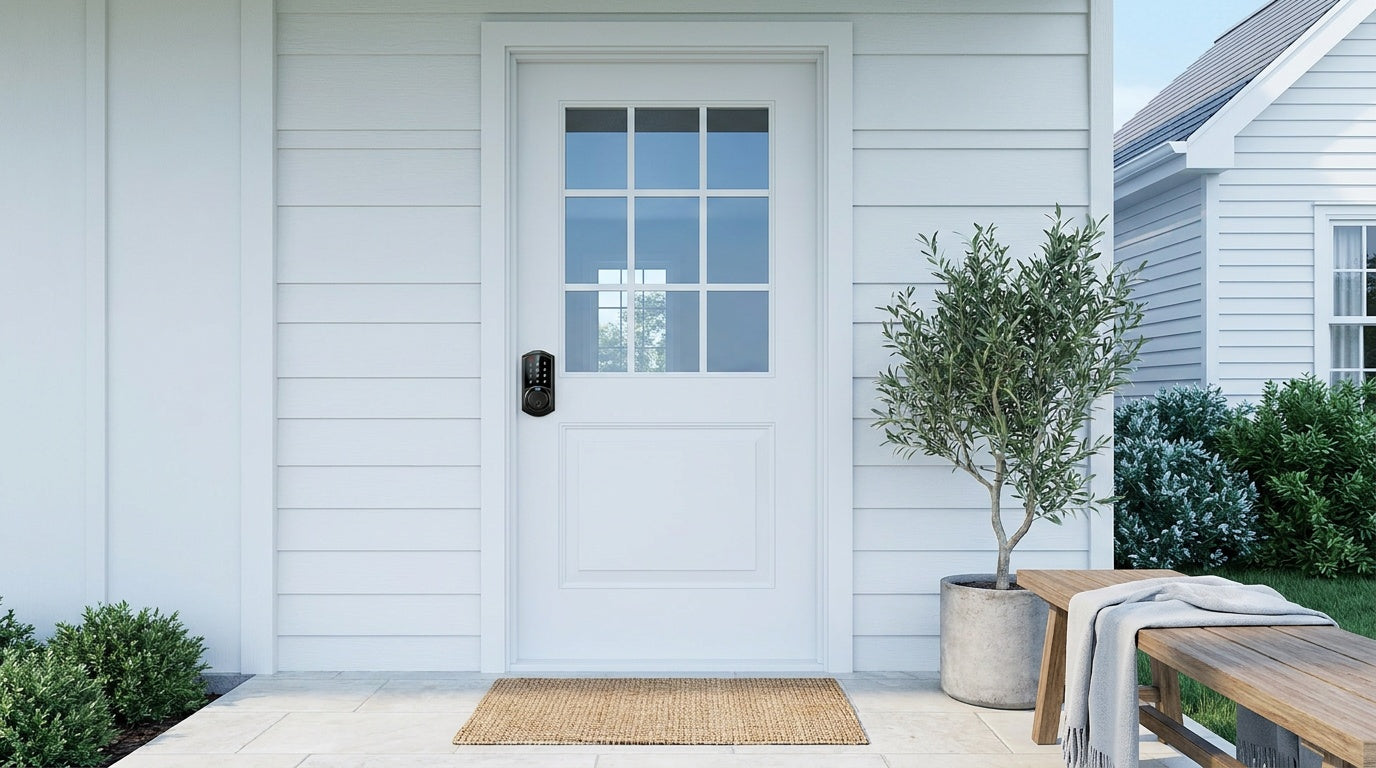
You're standing at your front door, groceries in hand, and your smart lock isn't responding. Maybe the keypad is dark, the app says the lock is offline, or the deadbolt is grinding and refusing to move. It's frustrating — and when home security is on the line, a little panic is understandable.
The good news: the vast majority of smart lock problems have straightforward fixes you can handle in minutes without calling a locksmith or ordering a replacement. This guide walks through the 10 most common reasons a smart lock stops working, what's actually causing each issue, and exactly how to fix it. Whether you own a keypad deadbolt, a Wi-Fi smart lock, or a Smart Lock w/ G1, you'll find the answers here.
1. Dead or Weak Batteries
What's happening: This is the single most common cause of a smart lock not working. A low battery doesn't always kill the lock outright — it often causes sluggish motor response, a dim keypad backlight, slow fingerprint processing, or intermittent connectivity before the lock goes completely dark. Many homeowners don't notice the warning signs until they're locked out.
How to fix it:
- Replace the batteries immediately with fresh, brand-name AA/LR6 alkaline cells. Avoid rechargeable NiMH batteries — their lower voltage (1.2V vs. 1.5V) can cause erratic behavior in some smart locks. Don't mix old and new cells, and don't mix batteries from different brands within the same set.
- After replacing, wait for the lock to reboot fully before testing.
- Check the battery contacts for corrosion. White or greenish residue on the terminals blocks power delivery. Clean contacts gently with a dry cloth or a pencil eraser.
Veise tip: Veise's Wi-Fi Smart Locks use 8 AA batteries instead of the more common 4 AA configuration, giving you a stronger, more stable power reserve and more consistent connectivity — so you get earlier warning of low power before it becomes a lockout situation. On the VE017 series (Smart Lock w/ G1) and the VE027 series (Touchscreen Wi-Fi Smart Lock), a USB-C emergency power port — standard across every SKU in those two series — lets you connect a power bank to unlock the door even if the internal batteries are completely dead.
2. Lock Shows as Offline in the App
What's happening: If your app shows the lock as "offline" or you can't lock or unlock remotely, the lock has lost its connection to the Internet. This affects Wi-Fi smart locks and gateway-paired smart locks differently, so the fix depends on your lock type.
How to fix it:
- For Wi-Fi Smart Locks: Make sure your home router is online and broadcasting a 2.4 GHz network. VEISE smart locks support 2.4 GHz Wi-Fi only and do not connect to 5 GHz networks. Restart your router, wait 60 seconds, then check if the lock reconnects automatically. If not, re-enter your Wi-Fi credentials in the app.
- For Smart Locks w/ G1 or G2: Remote access requires both the lock and the gateway to be powered and connected. Check that the gateway's indicator light shows a healthy connection. Unplug the gateway for 30 seconds and plug it back in. Ensure the gateway is within the wireless range of the lock.
- If Wi-Fi is down but you're within short-range wireless distance of the lock, app control continues to work locally — only long-distance remote features like off-site locking and alerts require live Internet.
Note that remote access requires a smart lock — either a gateway-paired model or a Wi-Fi model. A keypad deadbolt or keypad latch lock operates offline by design and cannot be paired with a gateway for remote control.
3. Keypad Not Responding
What's happening: You tap numbers and nothing happens — no beep, no light, no motor movement. This is usually a power issue (see Problem 1), but it can also result from a locked-out state after too many wrong code attempts, a capacitive keypad that's been exposed to water, or extreme cold numbing the touchscreen sensors.
How to fix it:
- Try replacing the batteries first, even if you think they're fine. A keypad is often the first component to lose responsiveness when voltage drops.
- If the keypad has gotten wet, dry it with a soft cloth and allow it to air out for a few minutes before retrying.
- In very cold weather, warm the keypad surface with your hand for 15–20 seconds. Cold can temporarily reduce touchpad sensitivity on capacitive panels.
- If the keypad is in lockout mode (indicated by a beep, a voice prompt, or an indicator light after multiple wrong entries), wait for the lockout timer to expire — 3 minutes on Veise locks — before entering your code again.
- As a backup, use the physical key slot (present on all Veise keypad locks) to gain entry while you troubleshoot.
4. Fingerprint Scan Not Working
What's happening: The fingerprint sensor rejects your print, reads slowly, or doesn't respond at all. Veise locks with fingerprint support are designed to recognize a registered print in under 0.3 seconds using on-device AI processing — no cloud lookup, no Internet required. When recognition fails, the sensor is rarely the problem. The issue is almost always environmental or user-side.
How to fix it:
- Clean the sensor: Oils, lotion, and dust create a film that interferes with the read. Wipe the sensor with a dry microfiber cloth before trying again.
- Check the finger: Wet, cut, or heavily calloused fingertips scan poorly. Try a different registered finger, or dry your hand thoroughly first.
- Re-enroll the print: If the problem persists for a specific finger, delete it and re-enroll. Veise's enrollment process captures your fingerprint eight times to build a reliable template across multiple angles and pressure levels — rushing through enrollment is a common cause of later recognition failures.
- Check the battery level: A weak battery can slow the AI chip response enough to cause read failures even when the sensor is clean.
Fingerprints are stored locally on the lock itself — not in the cloud and not tied to an account — so a factory reset will erase all stored prints. Re-enroll carefully after any reset.
5. Deadbolt Won't Fully Extend or Retract
What's happening: The latch bolt keeps cycling in and out, does not extend fully, or the app shows the lock as locked even though the bolt has not fully extended. This is usually caused by installation alignment or setup issues.
How to fix it:
- Reinstall the lock by following the installation guide and installation tips carefully.
- Do not insert the physical key into the lock cylinder before or during installation.
- Keep the latch fully retracted and make sure the torque blade is installed in the correct direction according to the installation guide.
- Make sure the cable is routed correctly according to the installation guide.
- Make sure the exterior and interior assemblies are installed parallel to the door edge. The exterior assembly should not be installed at a crooked angle.
- Confirm your door thickness and bore hole dimensions meet the installation requirements.
- Make sure the correct screws are used during installation and that all mounting hardware is securely tightened without overtightening.
6. Door Misalignment Blocking the Bolt
What's happening: The lock works normally when the door is open but struggles, stops partway, or fails to lock completely when the door is closed. This usually means the latch bolt is not aligning properly with the strike area, preventing smooth extension.
How to fix it:
- Test the lock with the door open and closed. If the latch works normally when the door is open but not when closed, check door alignment and strike positioning.
- Make sure the latch bolt can extend fully into the strike area without obstruction.
- Check whether the door is sitting evenly when closed and whether the latch aligns with the strike opening.
- Tighten loose hinge screws if the door appears misaligned or sagging.
- Recheck lock operation after adjusting door alignment.
Additional note: Minor door movement over time or seasonal temperature and humidity changes may affect latch alignment. Periodically checking door alignment can help maintain smooth operation.
7. Auto Lock Not Triggering — or Triggering Too Soon
What's happening: Auto lock is a convenience feature built into every Veise lock — after a set idle period, the lock engages automatically. Two complaints arise regularly: the lock isn't auto-locking at all, or it's locking so quickly that family members are getting shut out before they're fully inside.
How to fix it:
- Check whether auto lock is enabled in the lock's settings. On keypad models, this is usually toggled through a programming sequence described in the manual. On app-connected models, the toggle is generally in the app's settings interface.
- Adjust the auto lock interval. Veise locks let you configure this between 10 and 99 seconds on Keypad Deadbolt and Keypad Latch locks, and between 10 and 180 seconds on Smart Lock w/ Gateway 1/2 and Wi-Fi smart locks. If the lock is triggering too fast for your household, increase the interval. If it's not locking at all, confirm the feature is enabled and the interval is set to a reasonable time.
- If the lock auto-locks but the bolt doesn't fully engage (you hear the motor but the bolt stops short), refer to Problem 5 or 6 above.
8. Voice Control Not Responding
What's happening: You say "Alexa, lock the front door" and nothing happens. Voice control behavior depends on which type of Veise smart lock you have, so it's worth understanding the distinction before troubleshooting.
How to fix it:
- Wi-Fi Smart Locks connect to Alexa or Google Assistant directly via their built-in Wi-Fi. If voice control isn't working, verify the lock is still connected to your Wi-Fi network, then open your Alexa or Google Home app and check that the device is linked and shows online. Re-linking the skill or re-discovering devices often resolves a dropped connection.
- Smart Locks w/ G1 or G2 connect to voice assistants via the paired gateway — the gateway bridges the lock to your smart home ecosystem. If voice control fails, first confirm the gateway itself is online. A gateway that's lost its Internet connection will break voice control even if the lock is physically working fine. Re-link the device in your Alexa or Google Home app after confirming the gateway is back online.
- Check that your voice assistant account still has the smart home skill enabled. Skills can occasionally get unlinked during app updates.
For families relying on voice control for hands-free convenience, the Wi-Fi Smart Lock is the more self-contained option since it doesn't require a separate gateway device to be in operation.
9. Wrong Code Lockout
What's happening: Most smart locks enter a temporary lockout mode after a set number of consecutive wrong code entries. On Veise models, the threshold is 10 attempts. This is a deliberate security feature to deter guessing attacks. The lock signals lockout with a beep, a voice prompt, or an indicator light (varies by model) and refuses further input for a timed period.
How to fix it:
- Wait out the lockout timer (3 minutes on Veise locks). The lock will automatically return to normal operation.
- While locked out, use the physical key backup to enter. All Veise keypad deadbolts and keypad latch locks include a physical key on every model — this is precisely the scenario that backup key is for.
- Once inside, use the programming mode to review or reset your access codes. If multiple household members use the lock, consider whether a code was recently changed without everyone being notified.
- For app-connected models, the admin user can also manage codes remotely — useful if you're managing a short-term rental property and a guest is locked out.
- If this happens frequently, consider using fingerprint access (available on select Veise keypad deadbolts, all Smart Locks w/ G1, many Smart Lock w/ G2 models, and all Wi-Fi smart locks) as the primary unlock method to reduce keypad dependency.
10. Firmware Glitch or App Out of Sync
What's happening: Software is behind many phantom failures — a lock that misreports its status, an app that won't respond to commands even though the lock is physically working, or features that stop working after a phone or router update. Firmware bugs and app version mismatches are common culprits.
How to fix it:
- Restart the lock. Open the battery cover, remove the batteries, wait 10 seconds, and reinsert them. This clears any memory state causing erratic behavior. Wait for the startup sequence to complete before testing.
- Update the app. Check your device's app store for a pending update for the lock's companion app. Outdated app versions can lose compatibility with the lock's current firmware.
- Check for firmware updates. Open the app, navigate to your lock's device settings, and look for a firmware update option. Manufacturers push updates that resolve known bugs — installing them promptly is the single best preventive maintenance step for software issues.
- Force-close and restart the app. On iOS, swipe the app away. On Android, clear the app from recent apps. Reopen and attempt the command again.
- Factory reset as a last resort. If a specific feature has permanently stopped working after a firmware update and none of the above steps help, a factory reset and fresh setup will resolve most software-level issues. Be aware this erases all stored codes, fingerprints, and user settings — you will need to reprogram everything from scratch.
How to Prevent Smart Lock Problems
Most smart lock failures aren't sudden — they're the result of small things that compound over time. A few minutes of maintenance twice a year goes a long way toward keeping your lock reliable year-round.
- Check the batteries on a schedule. Check the batteries regularly. Replace them proactively instead of waiting for the low-battery alert, especially before extended travel or seasonal weather changes.
- Keep the sensor and keypad clean. A quick wipe of the fingerprint sensor and keypad face with a dry cloth every few weeks prevents oil and dust buildup that degrades performance gradually.
- Keep firmware and the app current. Enable automatic app updates on your phone. For firmware, check the device settings in your app every few months. Staying current prevents the gradual drift between app and lock software versions that causes phantom connectivity issues.
- Audit your access codes periodically. Remove old guest codes from short-term rentals, update codes after anyone loses a key fob, and make sure everyone in the household knows the current code. A surprising number of "lock not working" calls are actually "I didn't know the code changed."
When to Contact Support
Most problems covered in this guide are fully DIY-fixable. But there are situations where reaching out to the manufacturer is the right call. Contact support if:
- The bolt still won't fully extend, or keeps cycling in and out, after a clean reinstall per the install-manual steps.
- The lock fails to recognize any fingerprint after re-enrollment and a battery change, which may point to a sensor hardware issue.
- A firmware update caused a feature to stop working and a factory reset didn't restore it.
- The lock is within its warranty period and has visible physical damage or consistent malfunction despite following all troubleshooting steps.
Veise backs every lock with US-based phone and email support, plus a local warehouse for fast replacement fulfillment. If you've worked through this entire guide and your lock is still not cooperating, the support team can diagnose the issue remotely in most cases. You can also explore the full lineup — including Smart Locks w/ G1, Smart Locks w/ G2, and Wi-Fi Smart Locks — if a replacement or upgrade makes sense.
Frequently Asked Questions
Why is my smart lock beeping but not locking?
Beeping without a completed lock action usually means one of three things: the battery is too low for the motor to complete the throw, the deadbolt is meeting resistance from a misaligned door or dirty bolt channel, or the lock has entered an error state. Replace the batteries first, then manually extend the bolt with the door open to check for mechanical friction. If the bolt moves freely by hand but the motor can't complete it, door alignment is the likely cause.
Can a smart lock work if the Wi-Fi goes down?
Yes. All Veise keypad deadbolts and keypad latch locks work entirely offline by design — they don't need Wi-Fi to function. For Wi-Fi smart locks and Smart Lock w/ Gateway 1/2, keypad entry, fingerprint access, the physical key backup, and the key fob (on Smart Lock w/ Gateway 1/2 and the VE027 series only — not on the VE012W series) all continue working locally without an Internet connection. Even when Wi-Fi is down, app control continues to work locally as long as you're within short-range wireless distance of the lock. Only features that depend on a live Internet connection — such as remote locking from across town or push notifications — are unavailable when the network is down.
How do I reset my smart lock without the code?
Every Veise lock has a physical reset button or reset procedure described in the product manual, which can be performed without entering the access code. The reset button is typically located on the interior face of the lock body. Note that a factory reset erases all stored codes and fingerprints, so you will need to reprogram the lock from scratch after resetting. Always use the physical key backup to gain entry first if you are locked out.
Why does my smart lock drain batteries so fast?
Rapid battery drain usually has one of two causes: the lock is working too hard mechanically (fighting a misaligned door or a stiff bolt on every lock/unlock cycle, which burns far more motor power than a smooth operation) or the lock is constantly searching for a weak wireless signal. Fix mechanical friction first, then make sure your router or gateway is within a reasonable distance of the lock. Using fresh, high-quality AA/LR6 alkaline batteries rather than bargain brands or rechargeable NiMH cells also makes a meaningful difference.
What type of doors are smart locks compatible with?
Veise smart locks are designed for standard wood doors with a thickness between 1-3/8" and 2". They are not compatible with fiberglass, metal, storm, or sliding doors. Before purchasing, confirm your door material and measure the thickness to ensure a proper fit. Veise locks are full lock replacements (not overlays), so the installation involves swapping out the existing deadbolt or latch hardware entirely — a straightforward DIY job that typically takes about 15 minutes with a screwdriver.
My fingerprint worked fine for months and suddenly stopped. What happened?
Sudden fingerprint failure on a previously enrolled print is almost always caused by one of three things: a dirty sensor, a change in the fingertip condition (a cut, dry skin, or lotion residue), or a low battery affecting the AI chip's processing speed. Clean the sensor, dry your finger, and check the battery level. If recognition is still failing after that, delete the print and re-enroll it — go through all eight enrollment scans carefully, pressing the finger at slightly different angles each time to build a robust template.
A smart lock that isn't working is almost never truly broken. In the overwhelming majority of cases, the problem traces back to one of the ten issues covered in this guide — dead batteries, door misalignment, a dirty fingerprint sensor, a stale firmware version, or a dropped Internet connection. Each has a clear, actionable fix you can handle yourself.
The key is knowing where to look. Start with the simplest explanation (batteries) before moving to mechanical checks (bolt friction, door alignment) and then software (firmware, app sync). That order alone will resolve 90% of issues without any special tools or technical knowledge.
If you're in the market for a reliable lock that's built to minimize these issues from the start — with local on-device fingerprint processing, multiple backup entry methods, and 15-minute DIY installation — explore the full Veise lineup at iveise.com.
Still Having Trouble? We're Here to Help.
Veise's US-based support team can help you diagnose any issue — by phone or email, no bots, no runaround. Reach out and we'll get your lock back on track.
Contact Veise Support

Leave a comment
This site is protected by hCaptcha and the hCaptcha Privacy Policy and Terms of Service apply.