
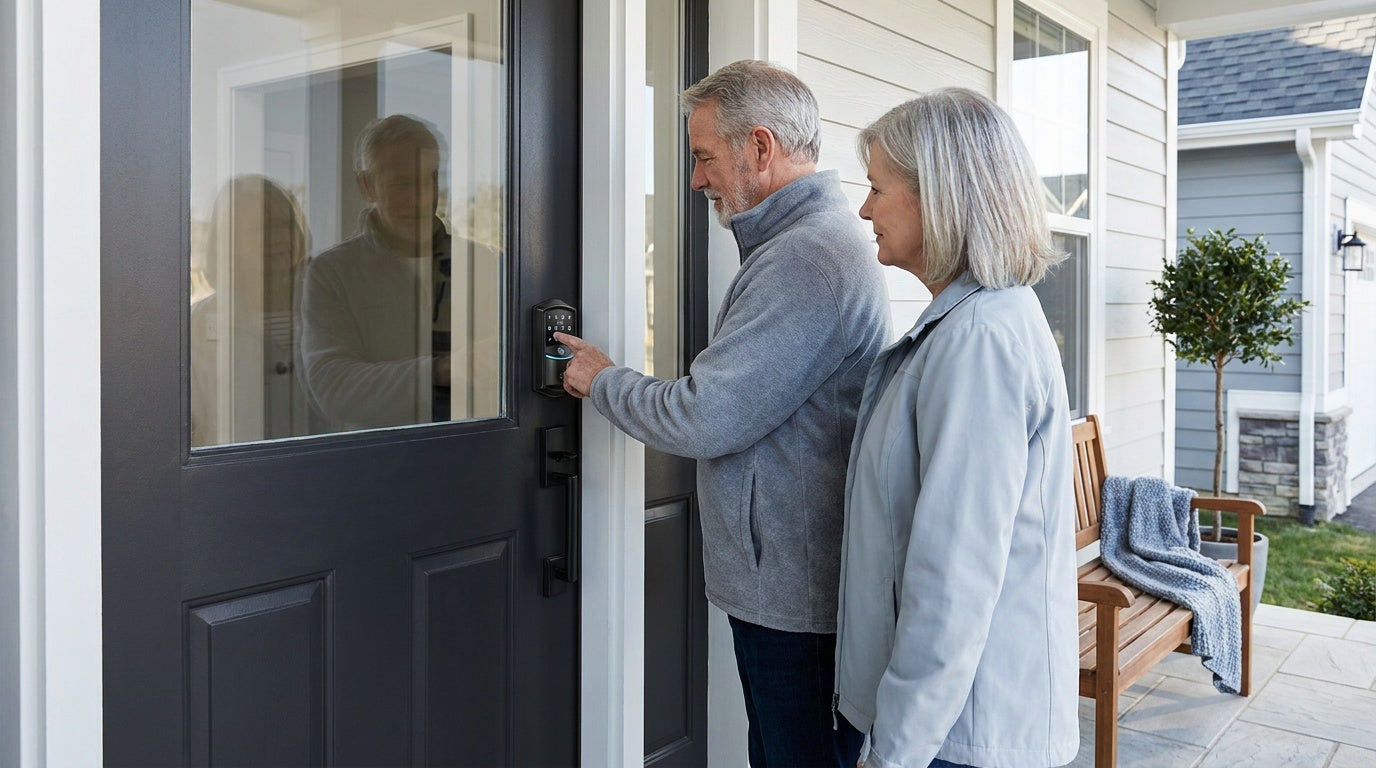
You're standing at your own front door and the keypad won't let you in. Maybe you forgot the code. Maybe you just moved in and want a clean start. Maybe the lock froze after a battery swap. Whatever brought you here, the good news is this: resetting a keypad lock is almost always something you can handle yourself in a few minutes, without calling a locksmith or replacing the hardware.
This guide covers every common situation where a keypad lock reset becomes necessary — from a forgotten PIN to a new home walkthrough to a dead battery that wiped the memory. You'll find clear, step-by-step instructions organized by scenario rather than by brand, so you can find your situation quickly and get back inside. We also cover what to do after the reset, including how to reprogram access codes and why a modern lock makes this entire process a lot more forgiving the next time around.
Why You Might Need to Reset a Keypad Lock
A keypad lock reset returns the device to its factory or default state, erasing stored codes and sometimes app pairings depending on the model. Most people only think about a reset when something goes wrong, but there are actually several normal, expected situations where a reset is the right first step. Understanding which situation you're in will help you choose the correct procedure and avoid unnecessary steps.
The most common reasons to reset a keypad lock include:
- You forgot or lost the master programming code
- You've moved into a home with an existing keypad lock and don't know the previous codes
- The lock stopped responding normally after a battery replacement
- The keypad is frozen, blinking unexpectedly, or beeping without input
- You want to clear all guest or family codes before selling or renting out the property
- The lock won't accept new code entries even though memory should be available
In most cases, a reset takes under five minutes and requires no special tools. The key is knowing which type of reset applies to your situation.
Before You Start: What to Have Ready
Before you attempt any reset procedure, gather a few things that will make the process smoother. Having everything in hand means you won't lose your place partway through.
- Your lock's instruction manual — even a quick PDF download from the manufacturer's website is fine
- Fresh AA/LR6 alkaline batteries — a low battery is the single most common cause of failed resets; install new ones first. Veise locks run on AA/LR6 alkaline cells — don't mix old and new batteries or different brands
- A reset tool — only on models that need one — some Veise locks include a reset tool (or use a thin object like a straightened paperclip) for a recessed reset button, while others can be pressed by hand. Check your manual for your model
- The physical key backup — keeps you from being locked out while you work through the process
- Your new desired code — decide on your new PIN before you start so you can program it immediately after the reset
One note on batteries: use AA/LR6 alkaline cells. Veise locks are specified for AA/LR6 alkaline batteries — rechargeable cells often run at a slightly lower voltage, which can cause erratic behavior that looks like a software problem but is actually a power issue. Don't mix old and new batteries or batteries from different brands.
How to Reset When You've Forgotten the Code
Forgetting the master programming code is the most frustrating reset scenario because the standard reprogramming path requires that code to work. The good news is that most keypad locks include a physical override that bypasses the code entirely. This is intentional — manufacturers build it in specifically for this situation.
Step-by-Step: Reset via Physical Reset Button
- Wake the lock and keep the door open and unlocked — Work from the interior side, where the battery compartment and reset button are located. You should never need to remove the lock from the door.
- Remove one battery, then press and hold the reset button — Use the included reset tool or simply press by hand, depending on your model.
- While still holding the reset button, reinstall the battery — When the panel lights up and you hear a long beep or voice prompt, release the button. The latch bolt extends automatically (or the thumb turn rotates), confirming the reset is complete. Exact cues vary by model.
- Program a new master code immediately — Follow your manual's programming sequence to set a new code before locking the door again.
Because the exact procedure differs by model, follow the included guide for your specific lock.
How to Reset a Keypad Lock in a New Home
Moving into a home with an existing keypad lock is one of the most important reset scenarios, even if the lock seems to be working fine. You simply don't know how many people have codes stored in that lock or what the programming credentials are. A full factory reset clears all of that and gives you a genuine fresh start.
Follow the same physical reset button procedure outlined above. If the previous owner left the manual, that will make things easier. If not, search for the lock's model number (usually printed on a label inside the battery compartment) along with the word "manual" to find the PDF. Once the reset is complete, program your own master code and any user codes for family members. Change these periodically, especially if you've shared codes with contractors, house sitters, or service providers.
If you're not just resetting an existing lock but replacing it entirely, this is also a good moment to consider upgrading. A newer keypad deadbolt or smart lock gives you features like one-time codes, auto lock, and app-based access history that older installed hardware simply doesn't offer.
How to Reset After a Battery Change or Drain
Battery-related resets catch a lot of people off guard. In most cases, replacing batteries on a keypad lock is straightforward and the lock resumes normal operation without any intervention. However, if the batteries drained completely before replacement, some locks lose their stored codes or enter an error state that requires a manual reset to clear.
What to Try First
- Replace batteries with fresh AA/LR6 alkaline cells — Veise locks use AA/LR6 alkaline batteries; make sure all contacts are clean and seated firmly, and don't mix old and new cells or different brands.
- Wait 30–60 seconds after installing batteries — Some locks need a short initialization period before accepting input. Try your code again after waiting.
- Attempt your stored code — If the lock still has memory, your existing code may work without any reset needed.
- If the lock doesn't respond normally, perform a factory reset as a last resort — Follow the reset button procedure above. Because a factory reset clears all stored codes and fingerprints, reprogram everything from scratch afterward.
Going forward, replace batteries proactively rather than waiting for a low-battery warning. Most keypad locks will signal low power through blinking lights or audible alerts before they fail entirely, giving you a window to swap batteries without losing any stored codes.
How to Reset a Keypad Lock That's Not Responding
A frozen or unresponsive keypad lock is unsettling but usually fixable. Before assuming the lock has failed, work through a few quick checks.
- Check battery power first — Swap in fresh batteries even if the existing ones seem fine. Low voltage causes most "frozen" behavior.
- Check for physical obstruction — Make sure the door is fully closed and the bolt is aligned correctly. A misaligned bolt can prevent the keypad from registering input.
- Reseat the batteries — Remove the batteries, wait a moment, then reinstall them. This power cycle clears minor glitches without erasing stored codes. On connected locks, also check for a firmware or app update, which often resolves intermittent issues.
- If still unresponsive, perform a factory reset — Press and hold the reset button as described above. A factory reset is a last resort: it returns the lock to its factory defaults and clears all stored codes and fingerprints, so you will need to re-enroll everything afterward.
If the keypad remains red, won't light up at all, or produces continuous beeping even after a full reset with fresh batteries, the issue is likely hardware rather than software. At that point, a replacement lock is more practical than continued troubleshooting.
How to Clear Old Access Codes Without a Full Reset
Sometimes you don't need a full factory reset — you just need to remove one specific code. This is common when a guest code expires, a family situation changes, or you want to revoke access for a contractor. Most keypad locks allow individual code deletion without touching the master code or other stored entries.
The exact steps vary by model: in general you enter programming mode with your master code, then follow the delete-code step for the specific user code you want to remove. Check your included user manual for the precise sequence on your lock. This is a much cleaner solution than a full reset when the lock and master code are both working correctly and you only need to adjust who has access.
What to Do After You Reset: Reprogramming Your Lock
A successful reset leaves your lock in a blank state — no codes, no pairings, no memory of previous settings. Reprogramming it correctly is just as important as the reset itself. Rushing this step is how people end up locked out a second time.
- Set a strong master programming code — This is the code that controls all other settings. Choose something you'll remember but that isn't predictable (avoid birthdays, addresses, or repeating numbers).
- Write the master code down and store it securely — Keep a physical copy somewhere safe, separate from the lock itself. A small card in a fireproof box or a password manager entry both work well.
- Add user access codes for each household member — Assign each person their own code rather than sharing a single code. This makes it easy to revoke individual access if needed without changing everyone else's code.
- Set the auto lock interval — Every Veise lock supports auto lock, so configure the delay that suits your household. A shorter interval (closer to 10 seconds) suits high-security situations; a longer one is more practical for daily comings and goings (10 to 99 seconds on keypad deadbolt and keypad latch locks; up to 180 seconds on connected models).
- Test every code before closing the door — Confirm each code works from the exterior keypad with the door open. This prevents an embarrassing lockout right after setup.
Resetting Smart Locks: Gateway-Paired and Wi-Fi Models
Smart locks with app connectivity add a few extra steps to the reset process because the lock needs to be removed from your account and potentially re-paired after the reset. The physical reset procedure is the same as a standard keypad lock, but there's important prep work to do first.
Before Performing the Reset
If your lock is connected to a mobile app, remove or unlink the device from the app before pressing the reset button. This ensures the lock and your account are cleanly separated. Skipping this step can leave a ghost device in your account that causes pairing issues when you try to reconnect after the reset.
After the Reset
- Re-pair the lock through the app — Follow the "Add Device" or "Add New Lock" flow in the app. This is the same process as a first-time setup.
- Reconnect remote access if applicable — For a gateway-paired smart lock, confirm the gateway is online and the lock has re-established its connection. Remote access (locking and unlocking from off-site) requires an active Internet connection through the gateway. Note that even when Wi-Fi is down, app control continues to work locally as long as you're within short-range wireless distance of the lock.
- For Wi-Fi smart locks — Reconnect to your home network through the app setup flow and confirm the lock appears as online before adding user codes.
- Re-enable voice assistant integration — If you use Alexa or Google Assistant, re-link the lock through your smart home app after re-pairing.
- Reprogram all access codes and fingerprints — The reset cleared everything, so re-enroll any fingerprints and re-enter user codes.
A Lock That's Easy to Set Up From Day One
A lot of the frustration around resetting a keypad lock comes from working with hardware that wasn't designed with the homeowner in mind. Cryptic button sequences, paper-thin manuals, and no backup access options are problems that modern locks have largely solved. If you're going through this process on an older lock and finding it painful, it might be time to consider a replacement that makes setup — and any future reset — straightforward.
Veise designs and manufactures its own locks rather than reselling generic OEM hardware, which shows in the day-to-day experience of owning one. The entire lineup installs in about 15 minutes with a screwdriver, requires no wiring, and doesn't need a subscription to use any of its features. Fingerprints are processed and stored on the lock's on-device AI chip rather than in the cloud, so your biometric data stays private. Veise is the #1-ranked smart lock brand on Amazon North America in both 2024 and 2025.
Here's a quick look at which Veise lock fits common reset-related situations:
- New homeowner wanting a clean start: A Veise keypad deadbolt replaces the old hardware entirely, giving you full control over every code from the first day. Select Veise models (the KS02 series) include fingerprint for a <0.3-second unlock experience alongside the standard keypad.
- Managing a short-term rental or vacation property: A Veise Wi-Fi smart lock lets you issue and revoke guest codes remotely from the app, check entry history without being on-site, and enable auto lock so guests can never leave the door unsecured. Voice control works through built-in Wi-Fi with Alexa and Google Assistant without needing any separate hub.
- Families with kids coming home from school: A Veise Smart Lock w/ G1 or a Wi-Fi smart lock gives parents real-time entry notifications and access history through the app. The G1 line is a single series (VE017) that ships with fingerprint, multilingual voice prompts in English, Spanish, and French, and a USB-C emergency power port on every model. The Smart Lock w/ G2 adds Apple Watch unlock and web portal control for households already in the Apple ecosystem.
- Interior doors, offices, or side entrances: A Veise keypad latch lock handles code-based entry on doors where a full deadbolt isn't needed. The two current models (KS03 with integrated knob, KS04 with integrated lever) differ only in handle style.
All Veise locks are designed for wood doors with standard thickness of 1-3/8" to 2" and require full lock replacement rather than an overlay. This means the buyer should be the property owner or have authority to modify the door hardware. Priced between $30 and $180, the lineup covers everything from simple keypad entry to full remote management without stretching the budget.
Browse the keypad deadbolt collection or explore all Veise products to find the right fit for your door.
Frequently Asked Questions
Will resetting a keypad lock delete all stored codes?
Yes. A factory reset erases all stored access codes, master programming credentials, and (on smart models) any app pairings or Wi-Fi credentials. You will need to reprogram every code from scratch after the reset. This is expected behavior, not a malfunction.
Can I reset a keypad lock without removing it from the door?
Yes. All reset procedures are performed with the lock fully installed. You access the reset button from the interior side of the lock, which remains on the door throughout the process. No screws, no uninstallation, and no damage to the door or frame.
What if the keypad lock won't respond during the reset attempt?
The most common cause is insufficient battery power. Replace the batteries with fresh alkaline cells before trying again. If the lock still doesn't respond after fresh batteries and a full reset attempt, the issue is likely hardware failure rather than a programming problem, and a replacement lock is probably the most practical solution.
How often should I reset or change the codes on a keypad lock?
A full factory reset is rarely necessary under normal conditions. However, you should change your access codes whenever you've shared them with someone who no longer needs entry — a contractor, house sitter, or former household member. Most keypad locks allow you to delete or replace individual codes without doing a full reset. Doing this once or twice a year as a general practice is a reasonable habit for most households.
Do smart keypad locks reset the same way as standard keypad locks?
The physical reset procedure is the same — press and hold the reset button until the lock confirms the reset. The additional step for smart locks is removing the device from your app account before the reset, then re-pairing it afterward. Skipping the app removal step can cause connection issues during re-pairing.
Can I reset a keypad lock if I'm locked out?
This depends on whether you can access the interior side of the lock. Most keypad locks include a physical key cylinder as a backup — if you have the key, you can open the door and access the interior. If you don't have the key and can't access the interior, contact a licensed locksmith. A locksmith can open the door without damaging the lock and help you reset or replace the hardware as needed.
Resetting a keypad lock is almost always a DIY-friendly task, regardless of what caused the problem in the first place. The core principle is the same across brands and scenarios: access the interior, press and hold the reset button, wait for confirmation, then reprogram your codes with a fresh start. Following the steps carefully and installing fresh batteries before you begin resolve the vast majority of reset issues without any outside help.
If the reset process feels more complicated than it should, or if you're going through it on an aging lock with limited features, it may be worth the opportunity to upgrade. A well-designed keypad lock should make code management easy, offer a physical key backup for emergencies, and last for years of reliable daily use without drama. The steps in this guide will serve you regardless of what lock you own — but the goal is to reach a point where you rarely need to use them.
Have questions about choosing or setting up a Veise lock? Our US-based support team is available by phone and email and can walk you through installation, programming, and any troubleshooting you need.
Contact Us

Leave a comment
This site is protected by hCaptcha and the hCaptcha Privacy Policy and Terms of Service apply.