
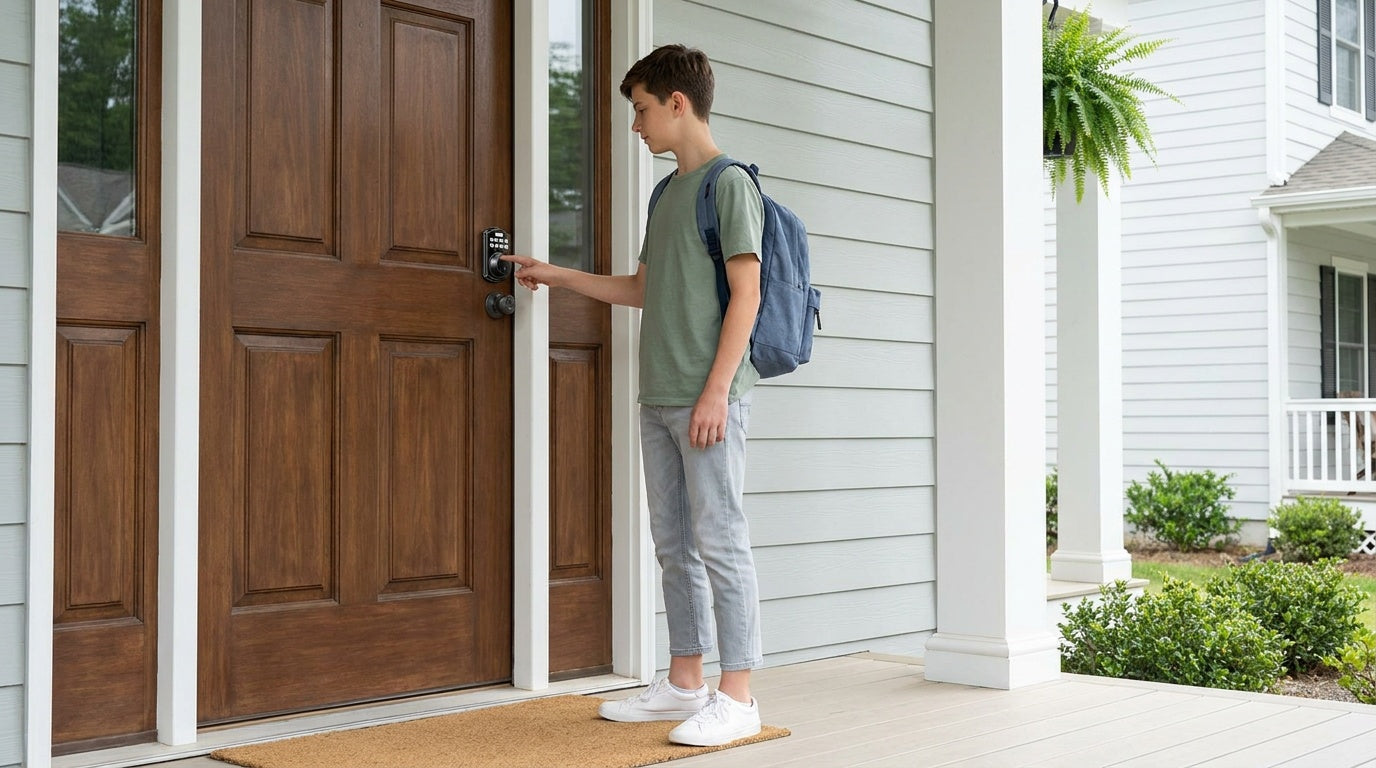
Picture this: you come home after a long day, tap your smart lock keypad, and nothing happens. No beep, no click, no green light. The batteries are dead — and you are standing outside. It is one of those small frustrations that feels enormous in the moment, and it is almost always preventable.
Replacing smart lock batteries is a quick, tool-minimal task, but doing it correctly matters. Use the wrong battery type, mix old cells with new ones, or skip the polarity check, and your lock can behave erratically even with fresh batteries installed. This guide walks through every step you need — from reading the early warning signs to choosing the right battery chemistry to a category-by-category replacement walkthrough for the four main lock types. Whether you own a basic keypad deadbolt or a fully connected Wi-Fi smart lock, you will find the specific guidance that applies to your setup right here.
Why Smart Lock Batteries Matter More Than You Think
A traditional mechanical lock works with pure physics — a metal key turns metal tumblers and the door opens. A smart lock adds a motor, a keypad or fingerprint sensor, and (on connected models) a wireless radio. Every one of those components draws power from the battery pack. When voltage dips below a usable threshold, the motor struggles, the keypad dims, and the wireless connection becomes unstable. Keep ignoring the warnings and the lock goes completely dark.
The good news is that modern smart locks are designed with this reality in mind. They warn you early, they give you multiple backup entry methods, and the actual battery swap takes only a few minutes once you know what to do. Understanding the process ahead of time — rather than figuring it out while locked out in the rain — is the entire point of this guide.
Warning Signs Your Smart Lock Battery Is Running Low
Smart locks do not fail silently. Most designs build in several layers of notification so you have plenty of time to act before the battery is fully depleted. The trick is knowing what to look for and taking action when you first see the signal rather than dismissing it.
The most common low-battery indicators include:
- Voice or beep prompt at the lock. Veise locks signal low battery with a voice announcement or a beep pattern at the keypad — which one you hear depends on the model (the VE017 and VE027 series include voice prompts; other models use beeps).
- Indicator light. Veise locks pair the voice/beep prompt with an indicator light, often flashing red on low battery (varies by model).
- App push notifications. Connected Veise locks (Smart Lock w/ Gateway 1/2 and Wi-Fi smart locks) also send a low-battery alert directly to your phone, on top of the voice/beep + indicator. Enable notifications in the app so these alerts are not missed.
- Sluggish motor or delayed response. If the bolt moves slower than usual or the keypad takes longer to light up, the batteries are likely struggling to deliver enough current for the motor.
The safest habit is to act on the first warning you notice rather than waiting to confirm with a second or third. By the time a low-battery warning becomes a dead-battery situation, you have already lost the ability to use keypad codes, fingerprint access, and app control simultaneously. Replace early.
Understanding Smart Lock Battery Types
Not every smart lock uses the same battery. Using the wrong type — or a lower-quality cell — is one of the most common reasons a lock behaves erratically after what should have been a simple replacement. Here is a plain-language breakdown of the battery types you will encounter.
AA/LR6 Alkaline — the supported chemistry for Veise locks
AA/LR6 alkaline batteries are the spec'd chemistry for every current Veise lock, on both interior locks and entry doors. Name-brand alkaline cells deliver a consistent 1.5V and are widely available. In freezing temperatures alkaline voltage drops faster, so plan to swap fresh cells in more frequently through the coldest months — but stay on alkaline (don't substitute lithium or rechargeable cells in a Veise lock).
AA Lithium (Disposable) — general context only, not for Veise
Disposable lithium AA batteries run at the same 1.5V nominal voltage as alkaline cells and hold that voltage more consistently in temperature extremes. They show up in the broader smart-lock category, but they are not supported on Veise locks — the hardware is specified for alkaline AA chemistry, so don't drop lithium AA cells into a Veise lock as a winter upgrade.
NiMH Rechargeable
NiMH rechargeable batteries seem like a convenient, eco-friendly choice — but they carry a caveat. NiMH cells run at 1.2V rather than the 1.5V that smart locks are designed for, and that lower voltage can trigger premature low-battery alerts in the lock's firmware. The lock may behave as though batteries are dying when they are not, creating unnecessary confusion. Always check your lock's manual before using NiMH cells; some manufacturers explicitly caution against them.
CR123A Lithium
CR123A lithium cells appear in some compact or specialty smart locks, particularly certain overlay-style models. They are more expensive and less widely available than AA batteries but excel in cold-weather performance. If your lock specifies CR123A cells, do not substitute AA batteries — the form factor and voltage are different.
A Note on Mixing Batteries
Regardless of battery type, never mix old and new cells in the same lock, and never mix brands or chemistry types in the same compartment. Mismatched batteries drain unevenly, and the weaker cells in the set become a bottleneck that can shorten the overall pack life considerably. Always replace the full set at once with fresh batteries of the same type from the same package.
What You'll Need Before You Start
Battery replacement on almost every smart lock is a straightforward job that requires minimal preparation. Gather the following before you begin:
- A fresh, complete set of the correct batteries (check your lock's manual or battery compartment label for the type and quantity)
- A screwdriver (only needed on locks where the battery cover is secured with a screw)
- A clean, dry cloth (optional but useful for wiping out any dust or minor corrosion from the battery compartment)
One important safety habit before any battery swap: make sure the door is in the unlocked position before you begin. If something goes wrong partway through the replacement — you drop a battery, or the lock briefly loses power during the swap — you want to be on the correct side of the door with the latch still retracted.
Step-by-Step: How to Replace Smart Lock Batteries by Lock Category
The exact battery compartment location and design varies by lock type. Rather than a single generic walkthrough, the steps below are organized by category so you can jump directly to the type that matches your lock.
Keypad Deadbolt Locks
Veise Keypad Deadbolt Locks run on AA/LR6 alkaline batteries. The battery compartment is located on the interior assembly — the side of the lock you see from inside the house. All models support keypad code entry and include a physical key backup; select models also feature fingerprint access.
- Unlock the door and confirm the bolt is retracted. Stand on the interior side of the door before proceeding.
- Locate the battery compartment cover on the interior side of the lock. The cover slides off by pressing and sliding to remove it.
- Remove the cover and take out all batteries at once. Never leave old batteries mixed in with the new set — replace the full pack together.
- Inspect the compartment briefly. Wipe out any dust with a clean, dry cloth. If you see white or bluish residue from a previous leak, clean the contacts carefully before inserting new batteries.
- Insert fresh AA/LR6 alkaline batteries, matching the polarity markings (+ and –) printed inside the compartment. A reversed cell is one of the most common causes of a lock that fails to power on after a swap.
- Replace the cover and slide it back into position. Press firmly until it is fully seated.
- Test the lock. Enter your keypad code to confirm the display lights up and the bolt responds normally. If your model has fingerprint access, try a fingerprint scan as well to confirm the sensor is live.
Keypad Latch Locks
Veise Keypad Latch Locks (KS03 and KS04 series) are integrated units with the handle and lock body built together. They share the same AA/LR6 alkaline battery setup as the keypad deadbolt line and support keypad code entry plus a physical key backup. The replacement process is the same as the keypad deadbolt line. One practical note: these locks are commonly used on interior and side doors, so make sure the latch is fully retracted and the door is open before beginning the swap.
- Open the door so the latch is clear and you have unrestricted access to the interior side of the lock.
- Find the battery compartment on the interior assembly. The cover typically slides off in one direction — check for a small arrow or tab indicating the release direction.
- Remove all old batteries together and set them aside for proper disposal.
- Insert the correct quantity of fresh AA/LR6 batteries with polarity aligned to the compartment markings.
- Reattach the battery cover until it clicks or seats securely.
- Test using your keypad code to confirm the lock is functioning normally.
Smart Lock w/ Gateway 1/2
Veise Smart Locks w/ Gateway come in two generations. The Smart Locks w/ G1 line is built on a single product series — the VE017 — and every model in the G1 line ships standard with a USB-C emergency power port, multilingual voice prompts (English, Spanish, and French), and fingerprint access. The Smart Locks w/ G2 line offers both fingerprint and non-fingerprint options across standalone and handle-set form factors, with English-only voice prompts and the unique ability to unlock via Apple Watch.
Both lines run on AA/LR6 alkaline batteries and share the same core replacement procedure:
- Unlock the door and position yourself on the interior side.
- Remove the interior cover to access the battery compartment. On most gateway-paired models, the cover slides off the interior panel with a gentle push.
- Replace all AA/LR6 batteries at once with fresh cells, observing polarity markings carefully.
- Reattach the cover and confirm it is fully seated.
- Test all entry methods — keypad code, key fob, physical key, and (on fingerprint-equipped models) fingerprint scan — to confirm each is responding normally.
- Check app status. After the battery swap, open the app to confirm the lock reconnects to the paired gateway and the battery level indicator refreshes to full.
For Smart Lock w/ G1 models specifically: if the battery fully drains before you can replace it, the VE017 series includes a USB-C emergency power port on the exterior panel. Connecting a power bank to that port temporarily powers the keypad so you can enter your code and get inside. Once indoors, replace the batteries immediately.
Wi-Fi Smart Locks
Veise Wi-Fi Smart Locks come in two series: the Touchscreen Wi-Fi Smart Lock (VE027 Series) and the Push-Button Wi-Fi Smart Lock (VE012W Series). Both share built-in Wi-Fi, app control, voice control via Alexa and Google Assistant, fingerprint access, and the 8 AA battery design rather than the more common 4 AA setup. That larger battery pack delivers a stronger, more stable power reserve and contributes to more consistent wireless performance.
The two series differ in four concrete ways: interface (touchscreen on VE027 vs press-button on VE012W), USB-C emergency power port (VE027 only), key fob support (VE027 only), and on-device multilingual voice prompts in English, Spanish, and French (VE027 only). Keep these distinctions in mind when planning your emergency backup strategy.
- Unlock the door and work from the interior side.
- Remove the interior panel cover to access the battery tray. Wi-Fi smart lock compartments typically hold 8 AA batteries in two rows or stacked slots — familiarize yourself with the layout before removing anything.
- Remove all 8 batteries and replace them together with a fresh set of AA/LR6 alkaline cells. Mixing old and new batteries in an 8-cell configuration is particularly disruptive to lock performance, so replacing the full pack at once is especially important here.
- Align polarity correctly for every cell. With 8 batteries, a single reversed cell can prevent the lock from powering on at all.
- Reseat the cover until it is secure.
- Test all entry methods — fingerprint, keypad code, physical key backup, and key fob on the VE027 series (the VE012W series does not include a key fob) — to confirm normal operation.
- Check the app. Wi-Fi reconnection is automatic in most cases, but confirm the battery level indicator has updated in the app after the swap.
If the Battery Is Already Dead: Emergency Access Options
If you missed the warnings and the battery is fully depleted before you could replace it, do not panic. Smart locks are designed with multiple fallback options so a dead battery does not mean a lockout.
- Physical key backup. Every Veise lock in every category ships with physical keys. Keep a copy in a secure location outside the home — a key lockbox, your car, or with a trusted neighbor. This is your most reliable emergency access method regardless of battery state.
- USB-C emergency power (VE017 and VE027 series). On select models — specifically the Smart Lock w/ G1 (VE017 series) and the Touchscreen Wi-Fi Smart Lock (VE027 series) — there is a USB-C emergency power port on the exterior panel. Connecting a power bank via a USB-C cable temporarily wakes the lock's electronics so you can enter your keypad code and get inside. This feature is not present on every Veise lock, so confirm your model before relying on it.
Once you are inside via any emergency method, replace the batteries immediately before the door is closed and locked again.
Pro Tips to Make Your Batteries Last Longer
Battery life in a smart lock depends on more than just cell quality. A few habits and settings can meaningfully extend the interval between replacements and reduce the chance of a surprise failure.
- Choose quality batteries. Name-brand alkaline or lithium cells from reputable manufacturers outperform generic alternatives, especially in high-drain situations like motorized locks. Cheap batteries are more prone to early failure and leaks — and a leaking battery can damage the lock's contacts permanently.
- Swap alkaline cells in more frequently through cold months. Alkaline chemistry loses voltage faster in freezing temperatures, so on exterior Veise locks in cold-weather regions, plan an extra mid-winter AA/LR6 alkaline swap rather than substituting lithium — lithium isn't a supported chemistry on Veise locks.
- Keep the door aligned and the latch smooth. A door that drags against the frame forces the motor to work harder on every cycle, drawing more current each time. If you notice the bolt sounds strained or slow, check the door alignment before attributing the issue to the battery.
- Use the auto lock interval wisely. Veise locks let you configure the auto lock interval — 10 to 99 seconds on Keypad Deadbolt and Keypad Latch locks, and 10 to 180 seconds on Smart Lock w/ Gateway 1/2 and Wi-Fi smart locks. If auto lock fires frequently (for example, every 10 seconds in a busy household), it drives more motor cycles per day. Increasing the interval reduces unnecessary cycles without sacrificing security.
- Do not leave depleted batteries in the compartment. Old batteries left in place after they are exhausted are more prone to leaking as the cell chemistry breaks down at the end of its life cycle. Replace them promptly and store new spares in a cool, dry place for the next change.
- Monitor battery status regularly through the app (gateway-paired and Wi-Fi models). For connected locks, battery level is visible in the app at any time — not just when you receive a low-battery alert. Build a quick check into a regular monthly routine rather than waiting for the warning.
Troubleshooting: Lock Not Working After a Battery Change
In the majority of cases a battery swap is completely uneventful — fresh cells go in, the lock powers on, and everything works immediately. But occasionally the lock does not respond as expected. Here is how to work through the most common post-swap issues:
- No power at all. Remove the batteries and check each one individually. A single reversed cell prevents the entire pack from completing the circuit. Recheck every cell against the polarity markings in the compartment.
- Lock powers on but behaves erratically. You may have mixed battery brands, types, or ages. Remove all cells and replace with a fresh, matched set from the same package.
- App shows the lock as offline (connected models). Smart Lock w/ Gateway 1/2 typically reconnects to the paired gateway automatically within a few minutes of powering back on; if reconnection does not happen within five minutes, restart the gateway (unplug it for 10 seconds and plug back in) and confirm the lock is within range. Wi-Fi smart locks rejoin the Wi-Fi network on their own; if they do not, restart your Wi-Fi router and confirm the lock is within range of a strong signal.
- Fingerprint reader is not responding. Some locks briefly recalibrate the biometric sensor after a battery change. Wait 30 seconds after installing fresh batteries before testing the fingerprint reader. If it still does not respond, try the keypad code to confirm the lock is otherwise operational, then contact support.
- Lock still shows low battery after a fresh set. If the app or lock itself continues reporting low battery immediately after a full replacement, the battery type may be the issue. Switch to fresh AA/LR6 alkaline cells — don't substitute lithium in a Veise lock.
If none of the above resolves the issue, Veise offers US-based phone and email support — reach out through the Veise Contact page and the team can walk you through model-specific troubleshooting steps.
Frequently Asked Questions
Will I lose my access codes or fingerprints when I replace the battery?
No. All programmed access codes and enrolled fingerprints are stored directly on the lock hardware, not in the battery. Removing the battery does not erase stored credentials. Your codes and fingerprints will all work normally as soon as fresh batteries are installed and the lock powers back on.
How often should I replace smart lock batteries?
Battery life varies based on usage frequency, battery quality, and lock features. Higher-traffic locks, those with always-on wireless connections, or those in cold-weather environments may require more frequent changes. The most reliable approach is to replace batteries promptly when the first low-battery warning appears — do not wait for a second or third alert. For connected locks, checking the battery level periodically through the app lets you get ahead of the warning entirely.
Can I use rechargeable batteries in my Veise lock?
Veise locks are designed to operate on AA/LR6 alkaline batteries. Don't substitute NiMH rechargeable cells (1.2V) — they will trigger premature low-battery warnings in locks specified for 1.5V alkaline — and don't substitute lithium AA, which isn't a supported chemistry on Veise locks. Use name-brand AA/LR6 alkaline cells, and don't mix old and new batteries or different brands within the same set.
What happens if my smart lock battery dies completely and I am locked out?
Every Veise lock ships with physical keys backup — this is your most dependable emergency option regardless of battery state. Additionally, the VE017 series (Smart Lock w/ G1) and the VE027 series (Touchscreen Wi-Fi Smart Lock) feature a USB-C emergency power port: connecting a power bank via USB-C temporarily activates the exterior panel so you can enter your code and gain access. Once inside, replace the batteries before closing and locking the door again.
Why does the Veise Wi-Fi Smart Lock use 8 AA batteries instead of 4?
The Veise Wi-Fi Smart Lock (both VE027 and VE012W series) uses 8 AA batteries rather than the more typical 4 AA configuration. The larger battery pack supports a stronger, more stable power reserve — particularly important for a lock that maintains a constant Wi-Fi connection and handles motorized bolt movement, fingerprint processing, and app communication simultaneously.
Is it safe to change batteries on a front door lock by myself?
Yes. Battery replacement on a Veise lock — or most smart locks — requires no electrical knowledge and no special tools beyond an occasional screwdriver. The entire process typically takes just a few minutes. The only precaution worth emphasizing is to start with the door in the unlocked position so a mid-swap power interruption does not leave you on the wrong side of the door.
A dead smart lock battery is rarely an emergency if you know the warning signs and have a plan in place. The key habits are simple: act on the first low-battery alert you see, always replace the full set of batteries at once with name-brand AA/LR6 alkaline cells (not lithium, not rechargeable, no mixing brands), keep your physical backup key accessible, and — if you own a gateway-paired or Wi-Fi smart lock — check battery status in the app periodically rather than waiting for the lock itself to notify you.
Every Veise lock is designed with these real-life moments in mind. Whether it is the 8 AA battery design in the Wi-Fi Smart Lock for extended power reserve, the USB-C emergency port on select VE017 and VE027 series models, or the physical key backup that comes standard across the entire lineup, the goal is the same: you should never be stranded outside your own home.
Need Help With Your Veise Lock?
Our US-based support team is available by phone and email to walk you through any battery replacement question, troubleshooting step, or product question — no bots, no wait queue. If you are looking to upgrade to a smarter setup, explore the full Veise lineup from simple Keypad Deadbolt Locks to fully connected Wi-Fi Smart Locks — priced from $30 to $180 with no subscription fees required.



Leave a comment
This site is protected by hCaptcha and the hCaptcha Privacy Policy and Terms of Service apply.