
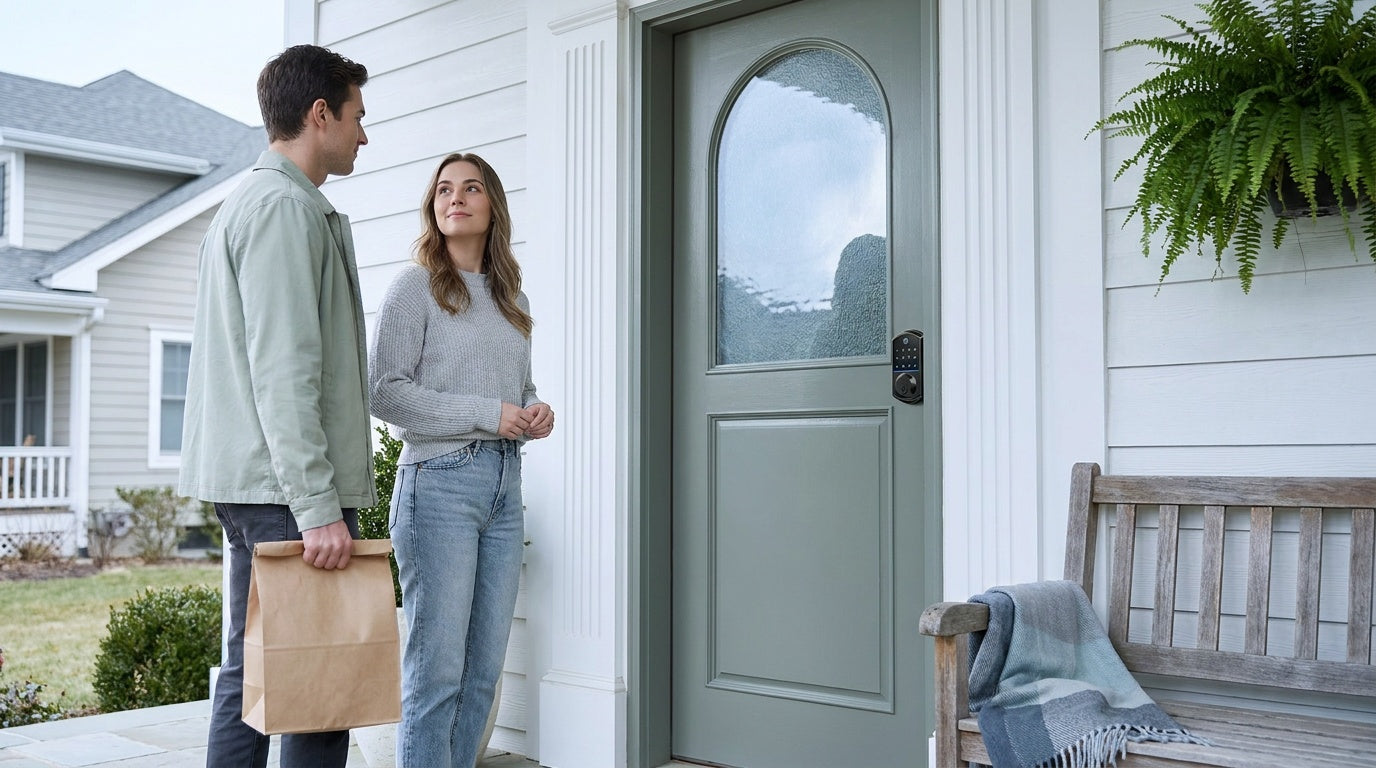
There's a moment most homeowners recognize: your hands are full of grocery bags, it's dark outside, and you're fumbling for your keys at the front door. Or maybe you're lying in bed wondering whether you remembered to lock up before falling asleep. Voice control through Amazon Alexa was built for exactly these moments — and when it's paired with a capable smart lock, your front door becomes one of the most useful connected devices in your home.
This guide walks you through everything you need to get your Veise smart lock working with Alexa — from identifying which lock supports voice control, to the step-by-step setup process, the Alexa PIN unlock system, useful voice commands, and automation routines that make your daily routine a little smoother. Whether you're a first-time smart lock owner or just expanding your existing Alexa setup, you'll have voice control up and running in under 30 minutes.
Which Veise Smart Locks Work with Alexa
Not every smart lock in the Veise lineup supports Alexa voice control — and knowing which category you have is the most important step before getting started. Veise offers two lock types that integrate directly with Alexa: Wi-Fi Smart Locks and the Smart Lock w/ Gateway 1/2. Keypad Deadbolts and Keypad Latch Locks, on the other hand, operate via keypad code and physical key only — they do not connect to Alexa or any other voice assistant. If you're looking to add voice control to your home, one of the two connected categories is the right choice.
The Wi-Fi Smart Lock is the most direct path to Alexa. It has built-in Wi-Fi, so it communicates with your home network and Alexa without any additional hardware beyond your Echo device. The Smart Lock w/ G1 and Smart Lock w/ G2 both require their paired gateway to be plugged in and connected to your router — the gateway is what bridges the lock to your network and makes Alexa communication possible. Either way, once the connection is live, the experience from Alexa's perspective is identical: you speak a command, the lock responds.
If you're still shopping for a lock and want the simplest Alexa setup, the Wi-Fi Smart Lock is worth a close look. Veise offers two Wi-Fi series: the Touchscreen Wi-Fi Smart Lock (VE027 Series), which features a glass touchscreen interface, a USB-C emergency power port, key fob support, and on-device voice prompts in English, Spanish, and French, and the Push-Button Wi-Fi Smart Lock (VE012W Series), which uses a traditional press-button keypad without those extras. Both series share the same Wi-Fi connectivity, fingerprint reader, app control, and Alexa and Google Assistant compatibility, so either works identically with Alexa once set up.
Before You Begin: What You'll Need
A smooth setup starts with having everything in place before you open the Alexa app. Take a few minutes to confirm the following checklist before moving to the step-by-step instructions:
- Your Veise smart lock, fully installed and tested. The lock should already be mounted on a wood door (Veise locks are compatible with wood doors only), paired with the app, and confirmed to lock and unlock manually before attempting Alexa integration.
- A working Amazon Echo device (Echo Dot, Echo, Echo Show, or any Alexa-enabled device) set up and connected to your home Wi-Fi network.
- The Alexa app installed on your smartphone (iOS or Android) and signed in with your Amazon account.
- A stable 2.4 GHz Wi-Fi connection. Both Wi-Fi smart locks and the gateway rely on 2.4 GHz Wi-Fi. Confirm your router is broadcasting on this band and that your lock or gateway is within reasonable range.
- For Smart Lock w/ G1 or G2 only: Your gateway must be plugged in, powered on, and already paired with the lock through the app before proceeding with Alexa setup.
Veise locks install in about 15 minutes with a screwdriver and no wiring required. If your lock isn't installed yet, complete the physical installation and app pairing first, then return here for the Alexa steps.
Step-by-Step: Connecting a Wi-Fi Smart Lock to Alexa
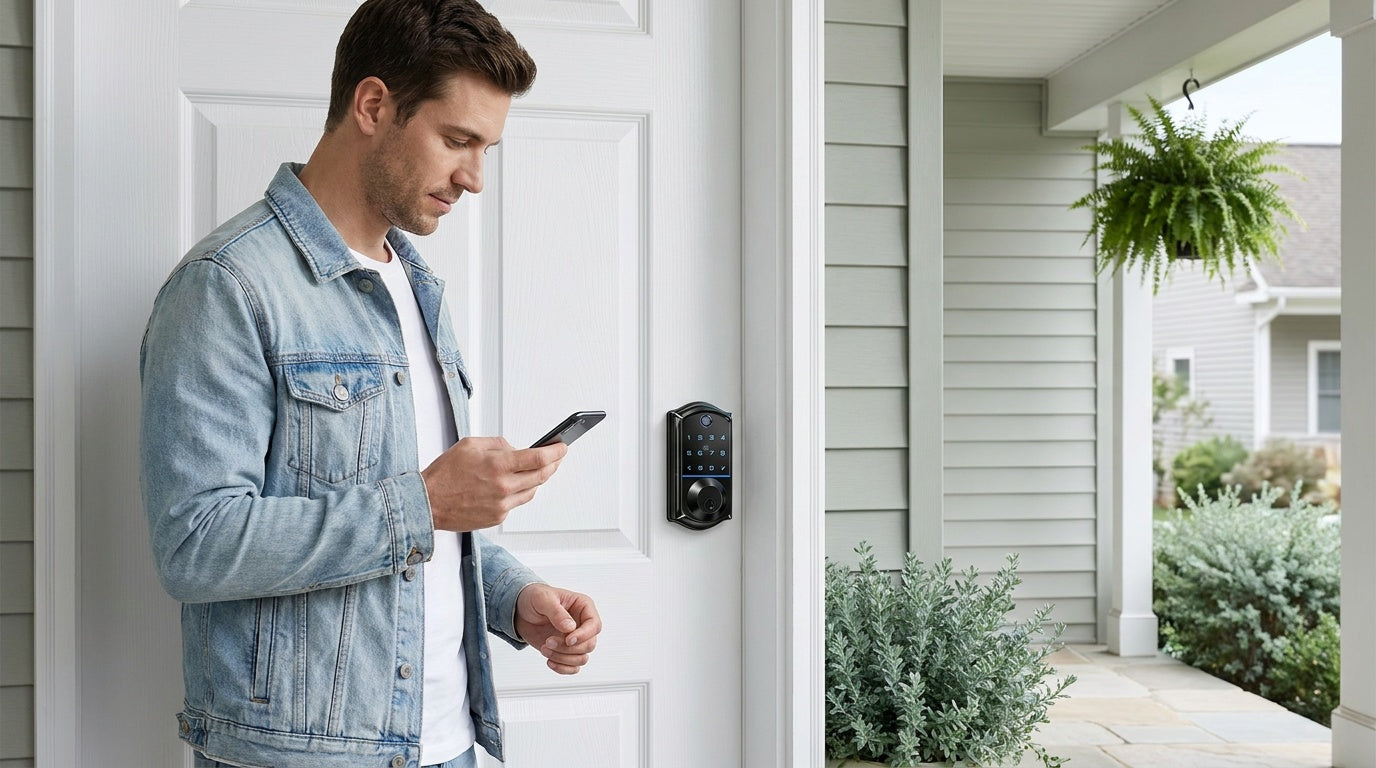
Veise Wi-Fi Smart Locks connect to Alexa through your lock's own app, which links your account to Alexa and hands device discovery off to the Alexa app. Because the lock is already on your home network via Wi-Fi, there's no extra hub to configure. Here's how to do it:
- Open your lock's app and confirm the lock is connected to Wi-Fi and showing as online. Navigate to My → Third-Party Voice Services and select Alexa.
- Tap "Agree and link" to start the linking process, then follow the prompts to sign in and link your account and the Alexa skill together.
- Open the Alexa app and locate your lock under Home or Devices. Open the lock settings and enable Unlock by App and Unlock by Voice. When prompted, create a voice code for voice unlocking.
- Test the connection. Say "Alexa, lock the front door" and confirm that the lock responds. Once the lock appears in Alexa and responds to commands, setup is complete.
One important note on naming: Alexa uses the device name you assign here when it confirms commands back to you. A simple, natural name like "front door" will always feel more comfortable to say aloud than something generic like "smart lock 1."
Step-by-Step: Connecting a Smart Lock w/ Gateway 1/2 to Alexa
For the Smart Lock w/ G1 or Smart Lock w/ G2, the gateway is the bridge between your lock and the Internet. The lock itself communicates with the gateway over short-range wireless; the gateway then passes commands to and from your home network. Before starting the Alexa steps below, confirm that your gateway is plugged in, its indicator light shows a successful network connection, and you can already lock and unlock the door remotely through the app — that confirms the gateway bridge is working correctly. The two lines use different apps, so the linking steps differ — follow the path that matches your lock.
Smart Lock w/ G1
The Smart Lock w/ G1 line links to Alexa through its app, the same app-first way the Wi-Fi locks do.
- Confirm your gateway is online and that you can already control the lock through the app.
- Open your lock's app, go to the third-party voice services section, and select Alexa. Tap "Agree and link" and follow the prompts to sign in and link your account and the Alexa skill together.
- Open the Alexa app and locate your lock under Home or Devices. Open the lock settings, then enable Unlock by App and Unlock by Voice. When prompted, create a voice code for voice unlocking.
- Name and verify. Assign a clear name to your lock in the Devices section, then test with "Alexa, lock the front door."
Smart Lock w/ G2
The Smart Lock w/ G2 line links from the Alexa side first, then turns on voice unlock in its own app.
- Confirm the Alexa app is installed and your G2 Gateway is set up and online. The gateway is sold separately, so make sure it's in place and connected first.
- In the Alexa app, tap More → Skills & Games, search for Sciener Smart, then tap Enable to Use.
- Sign in with your account and complete the authorization process. Once pairing is complete and the lock is found, tap Set Up Device, choose a room, and add it to a group.
- Open Devices → Locks, select your lock, then open Settings. Enable Unlock by Voice and create a voice code. You'll be asked for this code whenever you unlock the door with Alexa.
- Test the connection with a voice command such as "Alexa, lock the front door."
A quick reminder on offline behavior: if your home's Internet connection goes down, long-distance remote features will pause — but if you're home and within short-range wireless distance of the lock and gateway, app control continues to work locally even when Wi-Fi is down. Physical key backup is always available as well.
Enabling Voice Unlock and Setting Your Alexa PIN
By default, Alexa can lock your door and check its status using voice commands — but voice unlocking is disabled until you enable it manually. This is an intentional security measure: anyone within earshot of your Echo could otherwise trigger an unlock command. Enabling the feature requires you to set a four-digit voice PIN that Alexa will ask you to say aloud every time you request an unlock. If an incorrect PIN is entered three times in a row, Alexa will disable the voice unlock feature automatically until you re-enable it in the app.
Here's how to turn on voice unlock:
- Open the Alexa app and go to Devices.
- Tap on your smart lock from the device list.
- Tap the Settings icon (gear icon, top right corner).
- Select Unlock by Voice and toggle it on.
- Enter a four-digit PIN and confirm it. You will also need to verify your Amazon account password to complete activation.
Choose a PIN that isn't easy to guess — avoid sequences like 1234 or repeated digits. It's also worth changing your PIN periodically, just as you would a password. Voice locking, by contrast, requires no PIN at all: you can always say "Alexa, lock the front door" without any additional confirmation, making the security tradeoff clear and well-balanced.
Essential Alexa Voice Commands for Your Smart Lock
Once your lock is connected and voice unlock is configured, day-to-day use is simple. Alexa's LockController interface supports the following core commands — substitute "front door" with whatever name you assigned your lock during setup:
- "Alexa, lock the front door." Engages the deadbolt immediately. No PIN required for locking.
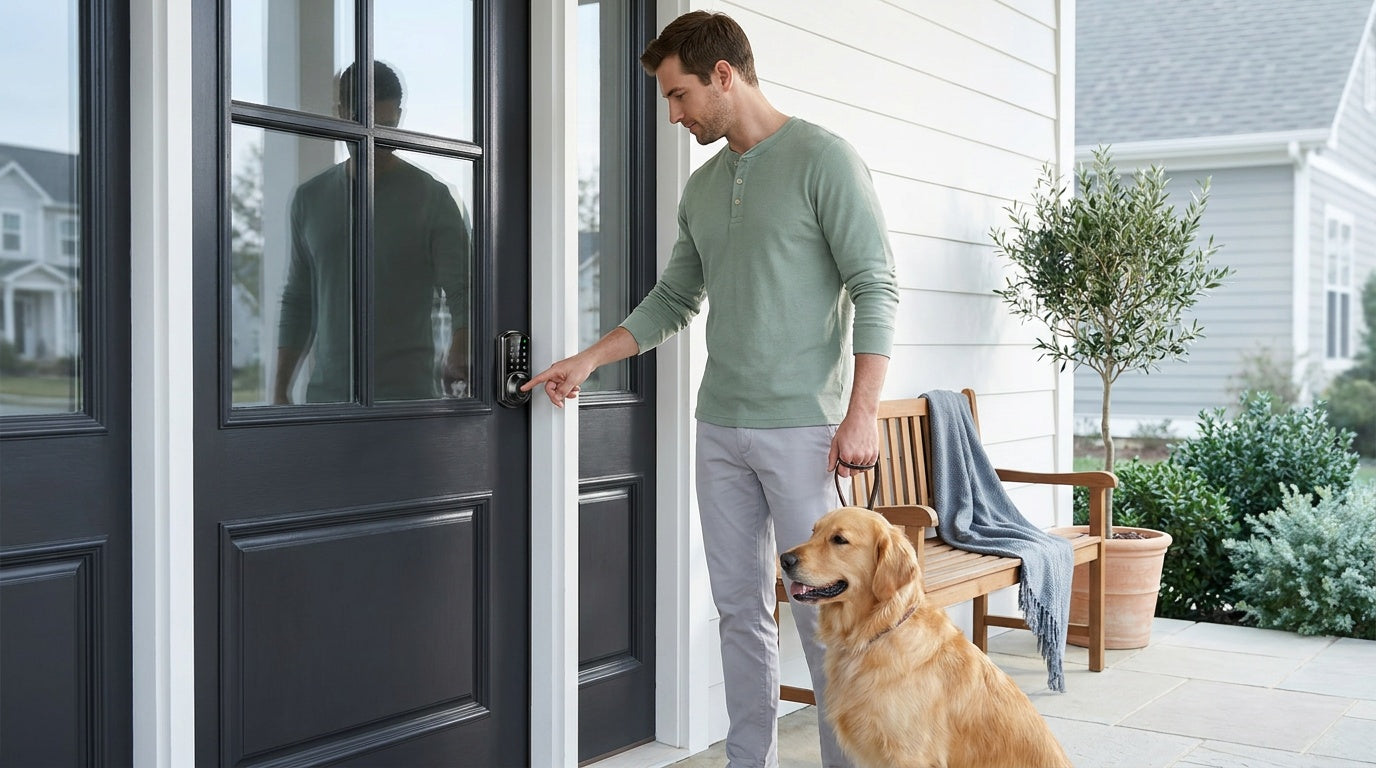
- "Alexa, unlock the front door." Alexa will prompt you to say your four-digit voice PIN before the bolt releases.
- "Alexa, is the front door locked?" Alexa reads the current lock state from the device and reports back — useful for a quick status check from bed or before you leave the house.
- "Alexa, is the front door unlocked?" Same as above, framed from the opposite direction.
These four commands cover the vast majority of everyday voice interactions with your lock. The status-check command is particularly appreciated by parents who want to confirm the door is locked after the kids come home, or by anyone who second-guesses themselves after leaving the house. Instead of turning the car around, a quick question to Alexa provides the answer instantly.
Building Alexa Routines with Your Smart Lock
Individual voice commands are useful, but Alexa Routines are where smart locks genuinely earn their place in a connected home. A Routine lets you chain multiple actions together under a single phrase — or trigger them automatically on a schedule. With your Veise smart lock in the mix, a single spoken phrase can secure your home, dim the lights, and adjust the thermostat all at once. Keep in mind that Alexa features, routine options, and menu names can vary slightly depending on your device model, firmware version, Alexa app settings, and regional availability.
To create a Routine, open the Alexa app, tap More, then Routines, and tap the + icon to add a new one. You'll define a trigger (a phrase you say or a specific time) and then add actions. Here are a few practical setups that Veise customers find genuinely useful:
- "Alexa, good night" — Locks all connected doors, turns off downstairs lights, and sets the thermostat to sleep temperature. A full bedtime sweep from one phrase.
- "Alexa, I'm leaving" — Locks the front door, turns off lights throughout the house, and sets the thermostat to an energy-saving mode. Ideal for households that occasionally rush out in the morning.
- Scheduled nightly lock — Set a routine to automatically lock the front door at 10:00 PM every night, no voice command needed. This is especially reassuring for families with teenagers or properties managed remotely.
- "Alexa, I'm home" — Unlocks the front door (with PIN confirmation), turns on entry lights, and adjusts the thermostat back to a comfortable temperature.
For parents managing a household with kids, the Wi-Fi Smart Lock or a gateway-paired smart lock adds another layer of value here: beyond Alexa Routines, the lock's app tracks entry history, so you can review exactly when the door was locked or unlocked throughout the day. Routines handle the automation; the app handles the record-keeping.
Airbnb hosts and short-term rental managers find scheduled routines particularly practical. A routine that locks all doors automatically at checkout time, combined with the app's ability to manage and update access codes remotely, means guest turnovers can happen without the host ever needing to be on-site.
What to Do If Alexa Isn't Responding
Most connectivity issues between Alexa and a smart lock come down to one of a few common causes. If Alexa says she doesn't recognize your lock or can't reach it, work through the following steps before assuming something is broken:
- Check that your lock is online in its app. If the lock shows as offline in the app, Alexa will not be able to reach it either. Resolve the app connection first.
- Confirm your Wi-Fi signal. Smart locks and gateways rely on a stable 2.4 GHz signal. If the router is far from the lock or gateway, a weak signal is the most common culprit. Moving the lock or gateway closer to the router, or vice versa, often resolves the issue.
- Restart your Echo device. Unplug it for 30 seconds and plug it back in. This clears any temporary communication errors between Alexa and the skill server.
- Re-link the skill in the Alexa app. Go to Skills & Games, find your lock's skill, disable it, then re-enable it and re-enter your account credentials. This refreshes the account link between Alexa and your lock's platform.
- Run device discovery again. Say "Alexa, discover devices" or trigger it from the Devices tab. Sometimes a lock drops off the device list after a router restart or firmware update.
- Check your PIN settings. If locking works but unlocking doesn't, confirm that voice unlock is still enabled in the Alexa app under your lock's device settings. The feature auto-disables after three failed PIN attempts.
If you're working through a persistent issue and none of the above resolves it, Veise's US-based support team is available by phone and email. Because Veise designs and manufactures its own locks — no OEM middlemen in the chain — the support team has direct access to product-level knowledge that a general retailer simply can't provide. Reach them at the Veise Contact Page.
Frequently Asked Questions
Do all Veise smart locks work with Alexa?
No. Only the Wi-Fi Smart Lock and the Smart Lock w/ G1 / Smart Lock w/ G2 support Alexa voice control. Keypad Deadbolts and Keypad Latch Locks operate via keypad code and physical key only and do not connect to any voice assistant.
Does a Smart Lock w/ Gateway 1/2 need the gateway plugged in for Alexa to work?
Yes. The gateway is what connects the lock to your home network and enables remote communication. Without the gateway powered on and connected to your router, Alexa cannot reach the lock. For Wi-Fi Smart Locks, no gateway is needed — the lock connects directly to your router.
Why does Alexa require a PIN to unlock my door?
Voice unlock is disabled by default as a security measure. Because anyone within range of your Echo could potentially issue an unlock command, Alexa requires a four-digit spoken PIN every time you request an unlock. Locking the door requires no PIN. You enable voice unlock in the Alexa app under your lock's device settings, where you also set the PIN.
What happens if my Wi-Fi goes down — can I still use the lock?
Yes. If Wi-Fi is down but you're within short-range wireless distance of the lock (or gateway), app control continues to work locally. Long-distance remote features — like locking from across town — do require an active Internet connection. In all cases, the keypad code and physical key backup work regardless of connectivity.
Can I use Alexa to check if my door is locked without unlocking it?
Yes, and this is one of the most frequently used commands. Simply say "Alexa, is the front door locked?" and Alexa will report the current lock state. No PIN is needed for status checks — only for unlock commands.
Which Veise Wi-Fi Smart Lock should I choose for Alexa use?
Both the Touchscreen Wi-Fi Smart Lock (VE027 Series) and the Push-Button Wi-Fi Smart Lock (VE012W Series) are fully compatible with Alexa and work identically with it once set up. The VE027 Series adds a glass touchscreen interface, a USB-C emergency power port, key fob support, and on-device multilingual voice prompts; the VE012W Series keeps to a press-button keypad without those extras. For Alexa specifically, either is a fine choice.
Is there a subscription fee to use Alexa voice control with a Veise lock?
No. Veise does not charge subscription fees of any kind. Voice control through Alexa is part of the lock's standard functionality at no additional cost beyond the lock itself.
Setting up your Veise smart lock with Alexa takes less time than you might expect — and once it's running, it quietly becomes one of the most practical upgrades in your home. From hands-free locking at bedtime to a single phrase that secures the whole house before you leave in the morning, voice control removes friction from the moments that matter. The key is starting with the right lock (Wi-Fi or gateway-paired), following the account-linking steps carefully, and setting up your voice PIN so both security and convenience are covered from day one.
Browse the full Veise smart lock lineup — from Wi-Fi Smart Locks to Smart Locks w/ G1 and Smart Locks w/ G2 — at iveise.com.
Need Help Choosing the Right Lock?
Not sure whether a Wi-Fi Smart Lock or a gateway-paired model is the better fit for your home? Veise's US-based support team is happy to help — no pressure, just practical guidance from people who know the product inside and out.

Leave a comment
This site is protected by hCaptcha and the hCaptcha Privacy Policy and Terms of Service apply.