

Picture this: your dog walker shows up while you're in a meeting, your in-laws arrive two hours before you get home from work, or a guest checks into your short-term rental at midnight. With a traditional key, every one of those situations requires either being there in person or handing out a physical copy you can never easily take back. Smart locks change that equation completely — and guest access is exactly where they shine.
Setting up guest access on a smart lock sounds technical, but it's one of the most practical things you can do to make daily life more flexible and more secure at the same time. This guide walks you through how temporary codes work, how to attach schedules so access expires automatically, which lock type fits each guest scenario, and the everyday tips that keep your home safe without the friction of managing keys. Whether you're a parent, a property owner managing a rental, or someone who just wants smarter control over who enters and when — this is the guide for you.
Why Guest Access Matters for Modern Homeowners
A physical key is a blunt instrument. You hand one out, and until you change the lock, that person has permanent, untracked access to your home. Smart locks replace that all-or-nothing model with something far more nuanced: you can grant access for a specific window of time, to a specific person, and revoke it the moment that need disappears — all without touching a key.
For families, guest access means a grandparent can let themselves in without needing a spare key that might get lost. For property owners managing a short-term rental or vacation cabin, it means checking guests in and out remotely, without coordinating key handoffs or lockbox combinations that don't change between stays. For anyone who regularly has service workers, cleaners, or contractors coming and going, it means giving access without compromising your primary household security. Guest access isn't a convenience feature — it's a fundamental shift in how you manage your home.
Types of Guest Access: Permanent Codes, Scheduled Access, and Remote Control
Smart locks offer several distinct ways to grant guest access, and understanding the differences helps you choose the right method for each situation.
Permanent PIN codes are the most common form of guest access. You assign a unique 4-to-10-digit code to a specific guest. That code works independently of your master code, so you can delete it when the visit ends without disrupting anyone else's access. Most Veise locks let you store multiple unique codes simultaneously, which means the dog walker, the house cleaner, and a visiting family member can each have their own code at the same time. On all Veise locks (including keypad-only models), one-time codes — codes that are auto-deleted after a single use — are also available for situations where you want a code that works exactly once.
Recurring and Duration codes go a step further and require an app-connected smart lock. A Recurring code is active only during defined hours on a weekly schedule — for example, every Tuesday from 10 a.m. to 2 p.m. for a regular house cleaner. A Duration code is active for a predefined time period — check-in to checkout for a rental guest, for example — and expires automatically when the window closes. You don't have to remember to delete it. These code types are managed through the app on the lock page.
Remote app-based access is the most flexible option and requires a smart lock with either a paired gateway or built-in Wi-Fi connectivity. With remote access, you can lock or unlock the door from anywhere, check the entry history to see exactly when a guest arrived or left, and receive real-time alerts. This is the method property owners and parents of school-age kids tend to rely on most heavily, because it gives visibility — not just access.
How to Set Up a Guest Access Code (Step-by-Step)
The exact steps vary by lock model, but the general process is consistent across most smart locks, including Veise's keypad and smart lock lineup. Here's how to set up a guest code on a typical keypad or smart lock:
- Enter programming mode. On Veise locks, press the multi-function button twice on the keypad, enter your master code, and press the multi-function button again to enter programming mode. The exact sequence is in the included user manual.
- Select the add PIN code function. Press the number key on the keypad that corresponds to the "add PIN code" function per your user manual.
- Enter the guest code. Type the new PIN (Veise keypad locks support 4 to 10 digits) and confirm it. Use a code that's unique and not easily guessable (avoid birthdays, sequential numbers, or repeating digits).
- Test the code. Before your guest arrives, lock the door and verify the new code opens it correctly. This takes thirty seconds and avoids an embarrassing lockout situation.
- Delete the code when it's no longer needed. Re-enter programming mode using the multi-function button and master code, then select the delete PIN code function per your user manual.
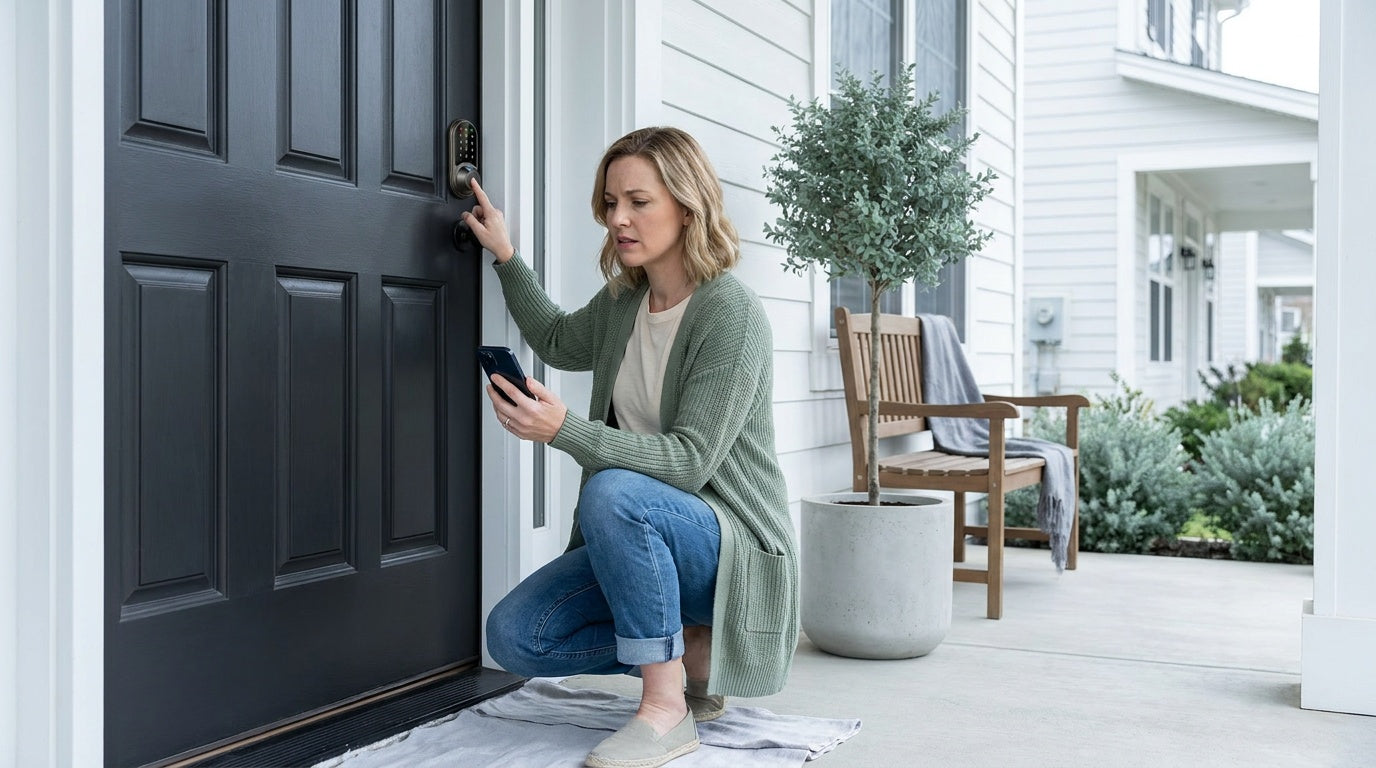
If you're using a Wi-Fi smart lock or a Smart Lock w/ G1 or Smart Lock w/ G2, the process above moves entirely into the app. You create a new user, assign a PIN, set any schedule you want, and save. The lock updates automatically. No button sequences to memorize.
How to Schedule Guest Access with Time Limits
Scheduling is defined when you create a guest code. In supported models, you select the code type first — such as Permanent, Recurring, Duration, or One-Time — and then set the corresponding access rules, such as expiration dates or scheduled access periods.
For short-term rental hosts, the practical workflow looks like this: when a new booking is confirmed, you create a Duration code in the app and set it to activate on the check-in date and expire on the checkout date. The guest receives the code through your normal communication channel. No one needs to be on-site, and access automatically ends when the scheduled period is over. If a guest checks out early or extends their stay, you can update the schedule in the app in under a minute.
For recurring access (for example, a weekly cleaner), you can create a Recurring code tied to specific days and hours. The code works only during the scheduled time window, such as every Tuesday from 10 a.m. to 2 p.m.
Scheduled access is supported only on smart locks with app connectivity. Standard keypad deadbolt can generate Permanent and One-Time codes directly on the device, but do not support automated scheduling features. For time-based access control, a Wi-Fi or gateway-connected smart lock is required.
Which Veise Lock Works Best for Guest Access?
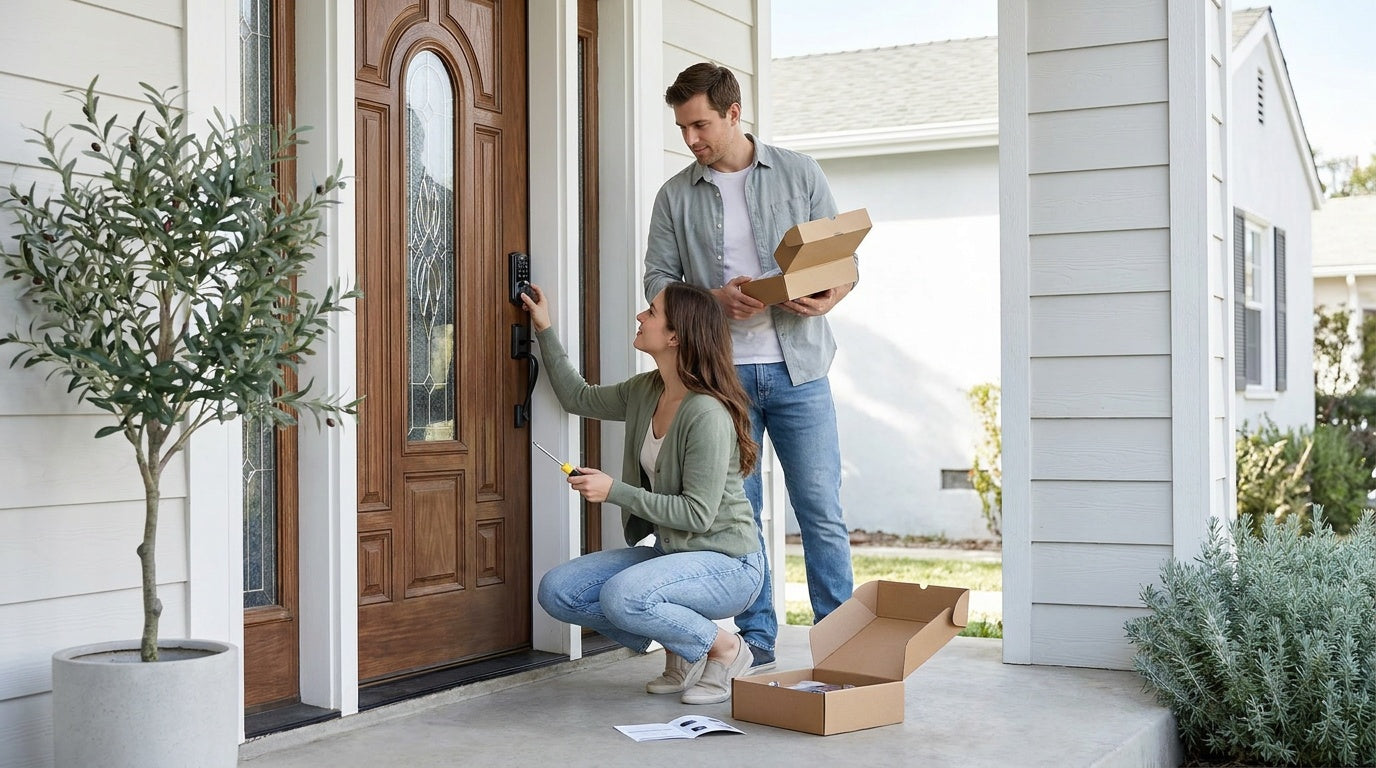
Veise's product lineup spans four main lock categories, and the right choice for guest access depends on how much automation and remote visibility you need. All Veise locks are designed for wood doors, install in about 15 minutes with a screwdriver, and carry no subscription fees — everything works out of the box. Here's how to match the lock to your guest scenario.
For Basic Guest Codes: Keypad Deadbolt
If your guest access needs are straightforward — multiple people need unique PIN codes, but you don't need scheduled access windows or remote monitoring — a keypad deadbolt covers the bases well. Every model supports multiple user codes alongside a master admin code, plus a physical key backup and one-time codes. The KS02 series adds a fingerprint reader — every KS02 SKU includes fingerprint, which is convenient for household members who enter frequently. Auto lock (configurable between 10 and 99 seconds on Veise keypad deadbolts) ensures the door secures itself after entry, so guests don't accidentally leave it unlocked. This is a solid pick for families hosting overnight guests where you can manually add and delete codes as needed.
For Remote Monitoring and Scheduled Access: Smart Lock w/ G1 or G2
When you need to manage guest access from a distance, the Smart Lock w/ Gateway category is the step up to make. Paired with a gateway device, these locks connect to the Internet and give you full app control from anywhere — create codes, set schedules, view entry history, and lock or unlock remotely. Both the Smart Lock w/ G1 and Smart Lock w/ G2 support multiple unlock methods: keypad code, key fob, physical key, and remote app via the paired gateway. Fingerprint coverage differs by line — every Smart Lock w/ G1 includes fingerprint as standard; many Smart Lock w/ G2 models include fingerprint (G2 offers both fingerprint and non-fingerprint SKUs).
The G1 line is built on a single product series — the VE017. Every Smart Lock w/ G1 ships with fingerprint access, multilingual voice prompts (English, Spanish, and French), and a USB-C emergency power port — all three are universal across the entire VE017 series. That multilingual support is a meaningful differentiator for households where not everyone is a native English speaker. The G2 line offers more SKU variety, including non-fingerprint options and handle-set bundles, plus Apple Watch unlock — useful if your guests or household members rely on Apple devices. Voice control works on both lines once the gateway is in place, bridging the lock to Alexa or Google Assistant.
Remote access requires a smart lock — gateway-paired or Wi-Fi. A keypad-only lock cannot be paired with a gateway. Even when Wi-Fi is down, app control continues to work locally as long as you're within short-range wireless distance of the lock — so you're not left without control during an outage.
For Maximum Convenience: Wi-Fi Smart Lock
The Wi-Fi smart lock is the most self-contained option. Because Wi-Fi connectivity is built directly into the lock, there's no separate gateway to install or maintain. You get the same remote access, entry history, scheduled codes, and voice control (Alexa and Google Assistant via built-in Wi-Fi) as the gateway-paired line, in a single device. Veise offers two Wi-Fi series: the Touchscreen Wi-Fi Smart Lock (VE027 Series) — touchscreen interface, USB-C emergency power port, key fob support, and on-device voice prompts in English/Spanish/French across the entire line — and the Push-Button Wi-Fi Smart Lock (VE012W Series), a traditional press-button keypad without USB-C, key fob, or on-device voice prompts. Both series use 8 AA/LR6 alkaline batteries for stronger signal and longer-lasting power reserve. For property owners managing a rental property or short-term rental remotely, the Wi-Fi smart lock is particularly well-suited — no hub, no additional hardware, just the lock and your phone.
For parents who want to know the moment a child arrives home after school, a Wi-Fi smart lock or a gateway-paired smart lock is the right call. Keypad-only locks don't send remote alerts or log entry history to an app — and that real-time visibility is what makes the difference between worrying and knowing.
Practical Tips for Managing Guest Access Safely
Having the right lock is only part of the equation. How you manage guest access day-to-day matters just as much. A few habits make a significant difference:
- Never share your master admin code. Your admin code controls the lock's programming — who can enter, what codes exist, and how the lock behaves. Keep it for yourself and assign unique user codes to every guest. That way, deleting one guest's access has zero effect on anyone else.
- Assign unique codes to each person. Even if two guests are arriving together, give them separate codes. If one code needs to be revoked, the other stays intact. It also helps you read the entry history accurately — you'll know exactly who entered at any given time.
- Use the auto lock feature. Every Veise lock includes auto lock — configurable between 10 and 99 seconds on keypad deadbolts and keypad latch locks, and 10 to 180 seconds on Smart Lock w/ Gateway 1/2 and Wi-Fi smart locks. Set it to engage after every entry, so a guest who forgets to close and lock the door doesn't leave your home unsecured.
- Review your entry log regularly. On app-connected locks, the entry history shows you every entry event. A quick review every few days catches anything unexpected — an entry at an unusual hour, or a code being used more often than you'd expect.
- Delete guest codes promptly. The moment a guest's stay ends, remove their code. On app-connected locks, this takes seconds. Don't leave codes active 'just in case' — a clean code list is a more secure lock.
- Communicate the code securely. Send guest codes through a private message channel rather than a public platform. For rental guests, use the booking platform's messaging system or a secure text. Avoid posting codes in shared documents.
The combination of unique codes, auto lock, and scheduled access windows creates a system where your home is protected even when you're not paying attention. That's the real value of smart guest access — it works in the background so you don't have to.
Final Thoughts
Guest access is one of those features that sounds optional until you actually use it — and then it's hard to imagine managing without it. Whether you're handing a code to a one-time visitor or building a fully automated check-in system for a rental property, the right smart lock makes the process reliable, trackable, and easy to revoke the moment it's no longer needed.
Veise's lineup covers every level of that need, from a simple keypad deadbolt that stores multiple unique codes to a fully connected Wi-Fi smart lock that lets you manage access from anywhere on your phone — all without subscription fees and with a 15-minute install that doesn't require a contractor.
Frequently Asked Questions
Can I give a guest access without giving them my main code?
Yes. Smart locks and keypad locks support multiple unique user codes that are separate from your master admin code. You assign a distinct code to each guest, and deleting it later doesn't affect your own code or anyone else's access.
Do scheduled guest codes require a Wi-Fi or internet-connected lock?
Yes. Time-based access codes such as scheduled (Recurring or Duration) codes require a smart lock with app connectivity — either a Wi-Fi smart lock or a gateway-paired model. A standalone keypad lock can create Permanent and One-Time codes, but it does not support scheduled time windows.
What happens if the Wi-Fi goes down — can guests still get in?
Yes. The keypad on the lock always works locally, regardless of Internet connectivity. On gateway-paired and Wi-Fi smart locks, even when Wi-Fi is down, app control continues to work locally as long as you're within short-range wireless distance of the lock. Only long-distance remote features (like off-site alerts or locking from another city) require active Internet.
How many guest codes can a smart lock store?
This varies by model, but most smart locks support enough simultaneous user codes for a household or small rental operation. Check the specific product page for the exact number, as it differs by SKU.
Can I see when a guest used their code?
On app-connected locks (gateway-paired or Wi-Fi), yes — the entry log records every access event with a timestamp. On keypad-only locks without app connectivity, there is no remote entry history.
Do Veise smart locks work with Alexa and Google Assistant for guest access?
Veise Wi-Fi smart locks support Alexa and Google Assistant directly via their built-in Wi-Fi. Smart Locks w/ G1 or G2 also support voice assistant control, but the paired gateway must be installed and connected for voice commands to work. Voice control is useful for quick lock or unlock commands, though guest code management is done through the app rather than voice.
Is a subscription required to use smart guest access features on Veise locks?
No. Veise charges no subscription fees. All features — remote access, entry history, scheduled codes, and app control — are included with the lock at no ongoing cost.
Have questions about which Veise lock is right for your guest access setup?
Our US-based support team is ready to help — by phone or email, no chatbot runaround.
Contact UsOr browse the full lineup: View All Veise Locks

Leave a comment
This site is protected by hCaptcha and the hCaptcha Privacy Policy and Terms of Service apply.