

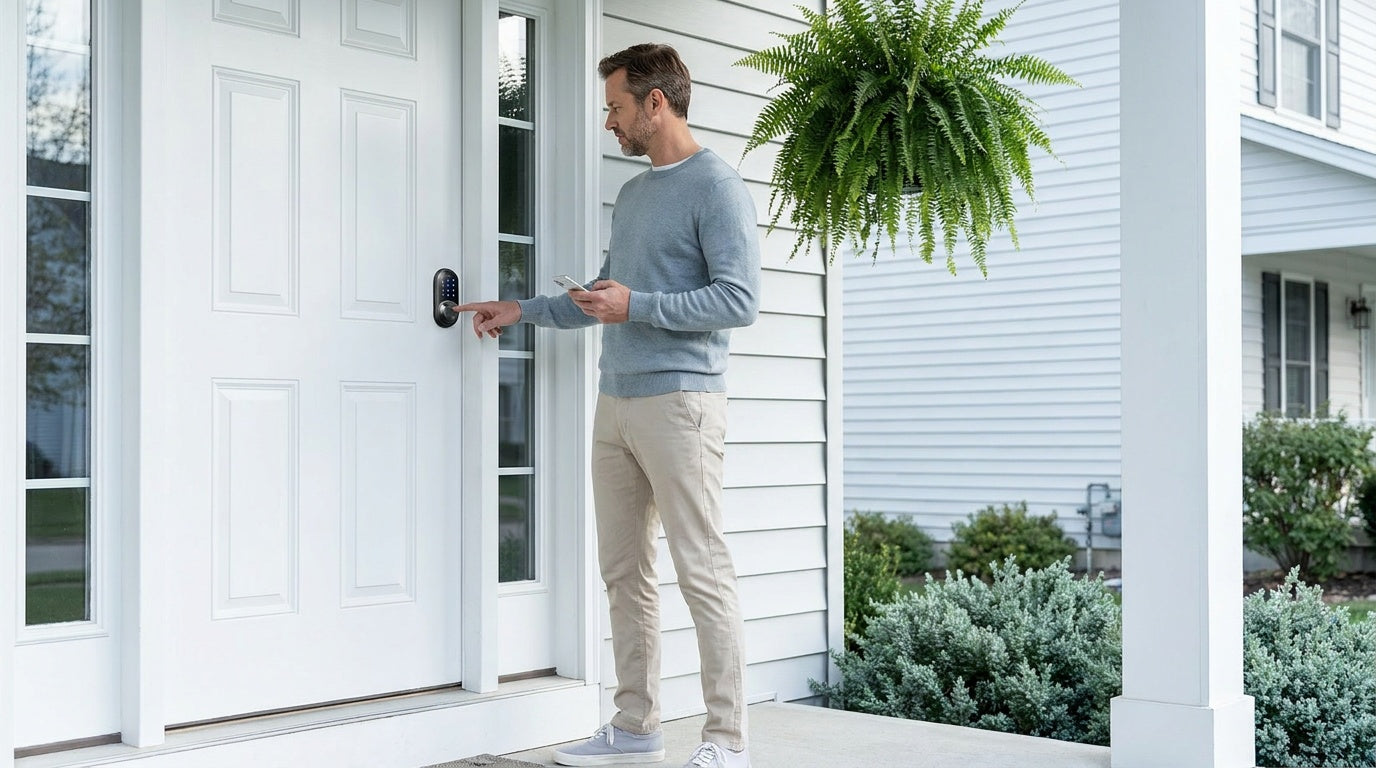
You gave your house cleaner the door code three months ago, the job is done, and you just realized you never changed it. Or maybe you recently moved into a new home and the previous owner's code is still active. Or you're an Airbnb host preparing for your next guest and want a clean slate. Whatever the situation, changing the code on a keypad door lock is one of the simplest and most effective things you can do to keep your home secure — and most people never think to do it until a problem comes up.
This guide covers the full picture: how to update a code on a standard button-press keypad deadbolt, how smart locks handle code changes through an app, what to do if you've lost or forgotten the master code entirely, and how to set up a temporary code for someone who only needs access for a limited time. Whether you have a basic keypad deadbolt or a fully connected smart lock, the process is more straightforward than most people expect.
Why You Should Change Your Keypad Door Lock Code
A keypad lock is only as secure as the code controlling it. The moment that code is shared — with a contractor, a pet sitter, a family member who no longer lives with you, or a guest at your short-term rental — it becomes a potential vulnerability. Unlike a physical key, a code can't be "taken back" unless you change it. And unlike a lost key, a shared code leaves no obvious trace that access is still open.
There are a handful of situations that should prompt an immediate code change. You've just moved into a home with an existing keypad lock and have no idea how many people have the code. A contractor or service provider finished their work. You wrapped up a guest stay at your rental property. Someone who previously had access to your home no longer should. Or it's simply been more than a few months since you last updated it. Any one of these is a good enough reason to spend the two to five minutes it takes to run through the update process.
Before You Start: What You Need to Know
Keypad door locks fall into two broad categories, and the process for changing the code differs between them. The first is a standard keypad lock — a self-contained unit with no app, no Wi-Fi, and no Bluetooth. It typically requires a programming sequence entered directly on the keypad using the multi-function button and the master code. The second is a smart keypad lock, which connects to a mobile app and lets you manage codes remotely from your phone.
Before you begin either process, locate your lock's user manual. Every manufacturer uses a slightly different programming sequence, and the manual will spell out the exact steps, button combinations, and timing requirements for your specific model. If you no longer have the paper manual, search the manufacturer's website using your lock's model number — most brands host PDF versions online. Also confirm whether your lock has a master code (sometimes called a programming code or admin code) separate from the user access code. On most standard keypads, you'll need the master code to make any changes.
How to Change the Code on a Standard Keypad Deadbolt Lock
Standard keypad deadbolt locks don't use an app — all programming happens directly on the keypad. The exact button labels and sequence numbers vary by brand and model, so always follow the included user manual for the precise steps. On Veise keypad locks, programming is done via the multi-function button on the keypad combined with the master code in a specific sequence. Here's the general flow:
- Enter programming mode – Press the multi-function button twice on the keypad, then enter your current master code and press the multi-function button again to confirm. The lock will signal that programming mode is active (typically with a green light flash). The exact button sequence is in the included user manual.
- Select the function you want – Press the number key on the keypad that corresponds to the function you need — for example, a specific number to change the master code, another to add a new PIN code, another to delete a code, or another to add a fingerprint. Your user manual lists which number maps to which function.
- Enter your new code – Type in the new code you want to use, then press the multi-function button to confirm. On Veise keypad locks, codes can be 4 to 10 digits.
- Re-enter the new code to verify – Type the new code again and press the multi-function button to save. A green light flash confirms the code has been saved successfully.
- Test it immediately – Lock the door, then enter your new code to confirm it works before relying on it.
If your lock signals an error (for example, a red light or an error tone), refer to your manual's troubleshooting section. A common issue is button timing — many keypads require each digit to be entered within a set window, typically two to five seconds between presses.
How to Add, Change, or Manage Access Codes on a Smart Lock
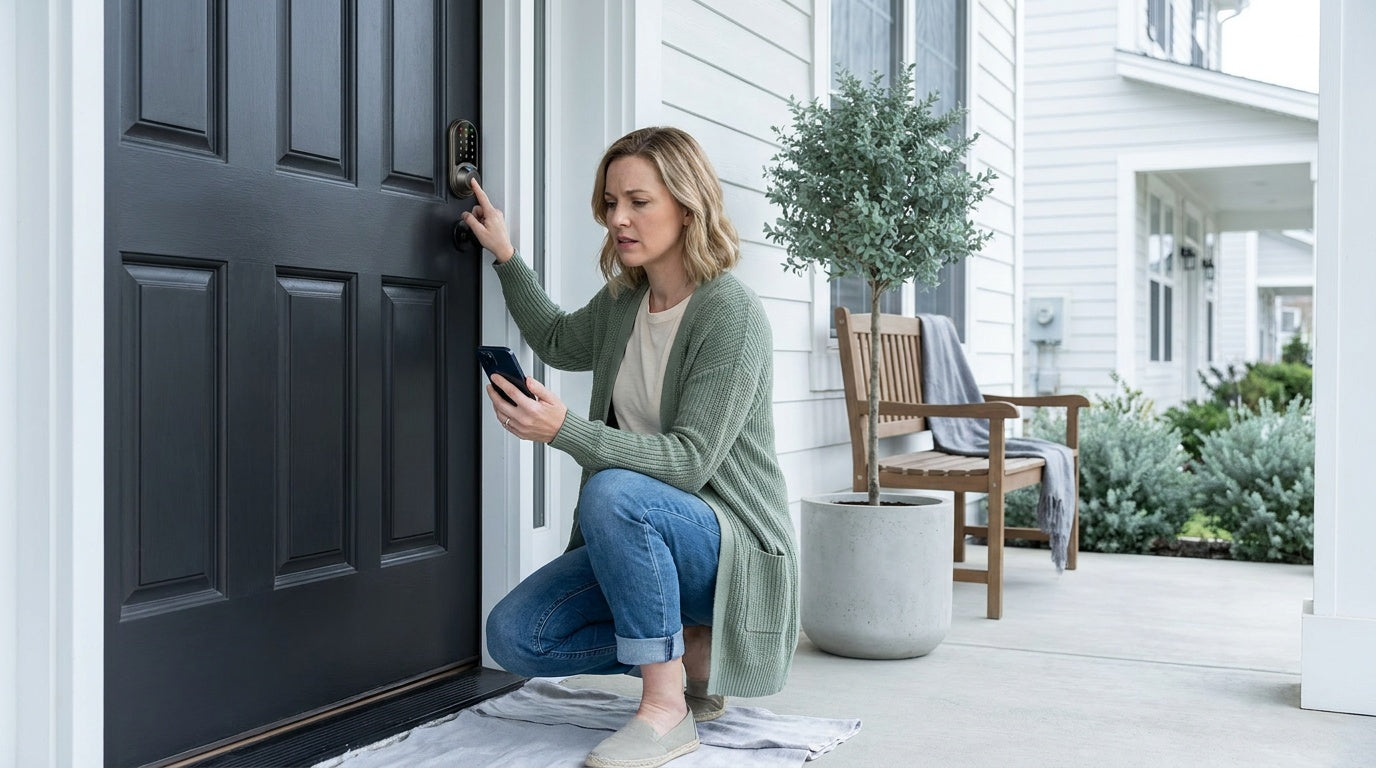
Smart locks that connect via Wi-Fi or a paired gateway make code management significantly more flexible. Instead of running through keypad sequences, you can create, edit, and manage access codes directly from the mobile app. This is especially useful for property owners managing guest access, families monitoring arrivals, or homeowners coordinating access for cleaners, contractors, or pet sitters.
For Wi-Fi smart locks, changes can be made remotely from anywhere with an Internet connection. For Smart Locks w/ G1 and Smart Locks w/ G2, the gateway bridges the lock to the app and enables the same remote management experience.
Veise connected locks support four types of PIN codes:
- Permanent – remains active until deleted
- Recurring – works during scheduled weekly time windows
- Duration – remains active for a specific start and end period
- One-Time – automatically deletes after one use
These code types make it easy to manage everyday access, short-term guests, service providers, or temporary visits without changing your main code.
The general steps are:
- Open the app and navigate to your lock – Launch the mobile app associated with your lock and select the device you want to manage from your home screen.
- Go to the right section for the code type – For PIN codes and fingerprints, tap the corresponding option on the lock page. For the master code, go to the settings interface.
- Add or edit a code – Tap "Add" to create a new code, or select an existing entry to edit it. Choose the code type (Permanent, Recurring, Duration, or One-Time), enter the code digits (Veise keypad locks support 4 to 10 digits), and save. The app will sync the change to the lock automatically.
- Test or share the code – Test the new code at the keypad to confirm the sync completed successfully, or share it with a guest, family member, cleaner, or service provider when applicable.
One important distinction: remote code management while away from home requires a smart lock — either a Wi-Fi model or a gateway-connected model. Standard keypad locks without app connectivity do not support remote access.
On standard keypad locks, One-Time codes are still available on all Veise models, including keypad-only locks without app connectivity. You can create them directly on the keypad using the multi-function button and master code by following the instructions in the user manual.
After pairing with the app, any master code or PIN code programmed directly on the keypad automatically syncs with the app, allowing you to view code records and manage access in one place.
How to Reset Your Keypad Lock When You Don't Know the Master Code
This is the scenario nobody plans for: you've moved into a home with an existing keypad lock, you've inherited a rental property, or you've simply lost track of the original programming code. Without the master code, you can't use the standard change-code process. The solution is a factory reset, which wipes all stored codes and returns the lock to its default state.
On Veise locks, the reset procedure works like this. First, wake up the lock and keep the door open and in the unlocked position. Remove one battery from the interior assembly, then press and hold the reset button — depending on the model, you'll use the included reset tool or press the button directly by hand. While still holding the reset button, reinstall the battery. When the panel lights up and you hear a long beep or voice prompt, release the reset button. The latch bolt will extend automatically (or the thumb turn will rotate), confirming the reset is complete. After the reset, the lock returns to its factory default master code (printed in the included user manual), which you should then immediately change to a personal code.
Reset procedures vary by brand, so always consult your lock's user manual for the exact steps. The manual also lists the default master code you'll need to begin reprogramming the lock from scratch.
Tips for Choosing a Strong Keypad Code
The best lock in the world can be undone by an obvious code. A few straightforward guidelines go a long way:
- Avoid sequential or repeated digits – Codes like 1234, 0000, or 1111 are the first things anyone tries.
- Skip obvious personal data – Birthdays, anniversaries, house numbers, and phone number fragments are easy for people who know you to guess.
- Use 6 digits instead of 4 when possible – A 6-digit code exponentially increases the number of possible combinations compared to a 4-digit code.
- Avoid repeating patterns – Codes like 121212 or 246810 follow patterns that are easier to guess than they appear.
- Don't use the same code across multiple locks – If one lock's code is compromised, you don't want it to work on every door in your home.
- Record it somewhere secure – A password manager, a locked notes app, or a written record stored away from the door itself. The goal is to avoid a lockout, not to memorize an impossible string.
Troubleshooting: When the Code Change Doesn't Work
If you've followed the steps and the new code still isn't working, a few common issues are usually responsible. First, check your timing. Many standard keypads require each button press to happen within a set window — if you pause too long between digits, the lock times out and you have to start over. Try entering each digit at a steady, deliberate pace.
Second, confirm you're in programming mode before attempting the change. On Veise locks, programming mode is entered via the multi-function button on the keypad combined with the master code — the exact sequence is in the user manual. Skipping this step means the new code entry is treated as a regular access attempt rather than a programming command.
Third, check the battery level. Low batteries cause erratic behavior on keypad locks — keys may register slowly, sequences may cut off mid-entry, or the lock may fail to save new settings. If the lock has been in place for more than a year without a battery change, replace the batteries before attempting any programming changes.
For smart locks, if the app isn't syncing the code change to the lock, confirm that the lock is connected to the app. Check your phone's wireless settings and verify the lock is online. If the sync still fails, try moving closer to the lock, closing and reopening the app, and attempting the save again. If the problem persists, contact the manufacturer's support team with the lock's model number for guidance specific to your device.
Frequently Asked Questions
How often should I change my keypad door lock code?
A general best practice is to update your access code every three to six months as part of routine home security maintenance. Beyond that schedule, change it immediately any time you've shared access with someone who no longer needs it — a contractor, a house guest, a former tenant, or any service provider whose job is complete.
Can I change the code without the original master code?
Yes, but it requires a factory reset rather than a standard code change. Factory resets clear all stored codes and return the lock to its default settings. On Veise locks, the reset uses the reset button on the interior assembly. After resetting, the lock returns to its factory default master code (printed in the included user manual), which you should change immediately. Always consult your lock's manual for the exact reset procedure.
Will changing the code erase all other codes on the lock?
No. Changing one user access code through the standard programming sequence only updates that specific code. Other stored user codes remain active. If you want to clear all codes at once, you'll need to perform a factory reset, which removes all stored codes and requires you to reprogram each one from scratch.
Do I need the internet to change a code on a smart lock?
For fully remote code changes (from a different location), yes — an active Internet connection is required. However, on both Smart Lock w/ Gateway 1/2 and Wi-Fi smart locks, app control continues to work locally even when Wi-Fi is down as long as you're within short-range wireless distance of the lock. And for standard keypad locks with no smart features, no Internet connection is ever needed — all changes happen directly at the keypad.
What should I do if my keypad stops responding during programming?
The most common cause is a timeout — keypads exit programming mode after a set period of inactivity. Start the programming sequence from the beginning, making sure to enter each step promptly. If the keypad remains unresponsive, check the battery level and replace if needed. Low or dying batteries are one of the most frequent causes of keypad lock programming failures.
Can I set a temporary code that expires automatically?
One-time codes — codes that are auto-deleted after a single use — are available on all Veise locks, including standard keypad models. For more advanced scheduling (codes that are active only during specific hours, or for a predefined time window), you'll need a connected smart lock. Wi-Fi smart locks, Smart Locks w/ G1, and Smart Locks w/ G2 support four PIN code types through the app: Permanent, Recurring (active during specific hours on a weekly schedule), Duration (active for a predefined period), and One-Time.
Changing the code on a keypad door lock takes a few minutes and makes a meaningful difference in who actually controls access to your home. Whether you're running through a button-press sequence on a standard deadbolt or updating user codes through a mobile app on a connected smart lock, the process is straightforward once you know the steps. The key habits are simple: change codes after any shared access, use a strong combination that isn't easy to guess, test the new code before you rely on it, and reset on a regular schedule rather than waiting for a problem to prompt it.
If your current lock makes this process feel more complicated than it should, that's often a sign the hardware isn't keeping up with how you actually use your home. Modern keypad deadbolt locks and Wi-Fi smart locks are designed to make access management easy — not just at installation, but every time your situation changes. Trust Veise, Secure Your Home.
Have a question about your lock or need help choosing the right model? The Veise team is based in the US and ready to help via phone or email. Contact Us and we'll point you in the right direction.
Ready to explore? Browse the full Veise lineup — from keypad deadbolts to Wi-Fi smart locks — at prices from $30 to $180 with no subscription fees and a 15-minute DIY install.


Leave a comment
This site is protected by hCaptcha and the hCaptcha Privacy Policy and Terms of Service apply.